
Webmoney
Conditions
The program only works with Keeper WinPro (Classic).
To connect this payment system to auto exchange, you must meet the system requirements:
1) You must have a certificate no lower than a personal one.
2) Your site must be registered in the Megastock catalog in the "Exchange Points" section. Pre-configure interfaces.
3) All system conditions must be met. See Regulations on the procedure for using the system
4) See the full description, what exchange offices and their clients need to do
5) QIWI Wallet and Yandex.Money are “linked” to WMID through the service banks.webmoney.ru To link an account in Yandex.Money to a WM wallet you must have an identified account in Yandex.Money and an exact match of the passport data in the Yandex system and the data in the WebMoney certificate. Binding is required for everyone who makes an exchange. Those. for the admin and all your users.
See also description: WMT restrictions
Key file
Placing the key file on your server is a prerequisite. Without a key file, it is impossible to fulfill all the conditions of the system. Check whether the exchange is carried out in favor of third parties, check the history and complete the auto-exchange.
We will not describe the creation of wallets in the keeper. If you have Keeper Classic installed, then you know how to do this.
Launch your keeper, which will serve the exchange office.
Top menu: Tools - Program Options - Security.
Next “Save keys to file” and enter the numbers that are requested.
Next, enter the “Access code for the key file” and “Confirmation”.
IMPORTANT! YOU NEED THIS CODE ABSOLUTELY. RECORD IT AND SAVE IT!
The code can be made up of numbers and Latin characters. For example: 764424t92t5iurg.
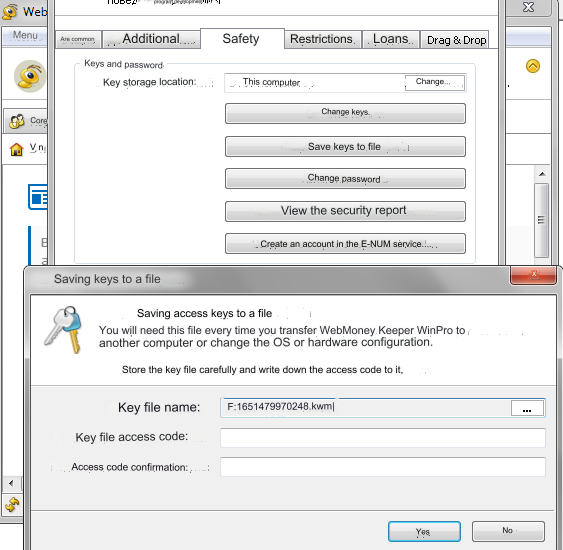
Click “Yes” and the file is saved in the directory you specified.
Next, go to this directory and take (copy) this file.
The file has a KWM extension and its size is 164 bytes.
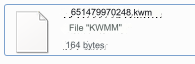
You must upload this file to the server in the directory BEFORE the public_html/ or www/ folder, renaming it if desired.

You can place this file in any other directory on your server. It is important that it IS NOT available for download.
Next step. You need to write the access code and the path to the key file in the file: api/changers/webmoney/key.inc.php
Open the file and change:
define('PASS', 'your_key'); // your_key change to your key access code define('KWMFILE', '/home/w/user/651479970248.kwm'); // /home/w/user/651479970248.kwm - change to your path on the server (home directory) to your key file and the name of your key file Save and replace the file on the server.
Interface settings
Launch your keeper and go to the Webmoney Transfer website: https://merchant.webmoney.ru/conf/purses.asp
See a list of your wallets
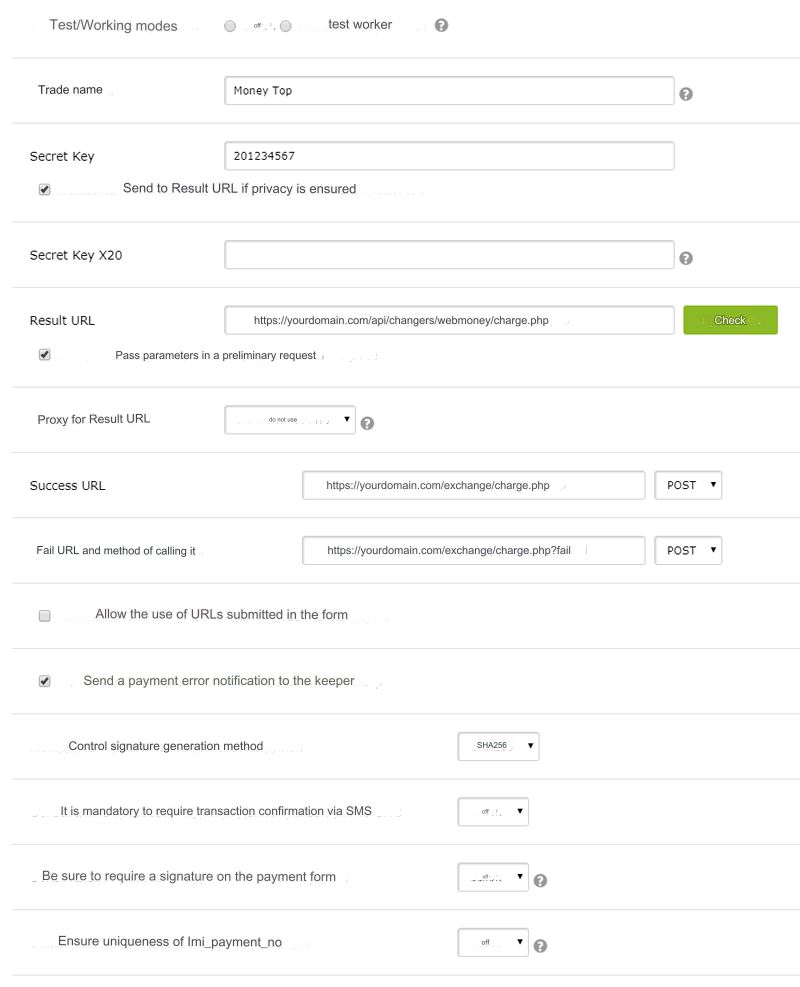
Next, click Setup next to Z wallet and fill in the fields.
Trade name - any, usually the name of your exchange office. Will be displayed in exchange interfaces Secret Key - set the same value as in the admin panel Currency exchange-Payment systems-WebMoney WMZ-Secret Key For example: fdgkfhg758695 - random set of Latin characters and numbers Send Secret Key to Result URL, if Result URL ensures secrecy - MUST be ticked! Result URL - https://yourdomain.com/api/changers/webmoney/charge.php (yourdomain.com - replace with your domain) Check Result URL. Click the Check button opposite. The response should be: Result URL available. Returns code 200(SUCCESS) and text: fail Pass parameters in a preliminary request - the checkbox is REQUIRED! Success URL - https://yourdomain.com/exchange/charge.php (yourdomain.com - replace with your domain) Success URL call method - Select the POST field. Fail URL - https://yourdomain.com/exchange/charge.php?fail (yourdomain.com - replace with your domain) Fail URL call method - Select the POST field. Control signature generation method - SHA256 Test/Working modes - Working Do not touch the remaining buttons and windows. You leave everything as it was. Click the save button. Carry out exactly the same settings with the rest of the wallets. EXTREMELY IMPORTANT!!! Secret Key FOR EACH OF THE WALLETS MUST HAVE ITS OWN - INDIVIDUAL. Be sure to enter all URLs with https if you have the SSL protocol enabled and configured.
Connecting XML interfaces
Connecting XML interfaces is carried out after activating your resource in the Megastock catalog in the "Exchange offices" section
Launch your keeper and go to the Webmoney Transfer website: https://merchant.webmoney.ru/conf/purses.asp
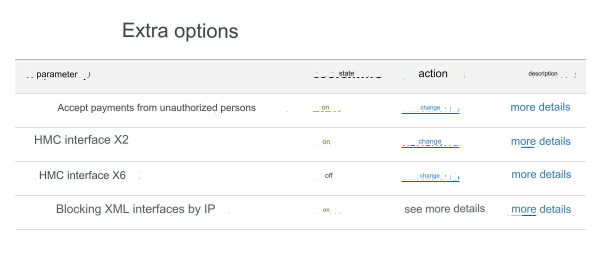
List of wallets - Additional options
Accept payments from unauthorized persons - enable XML interface X2 - enable Blocking XML interfaces by IP - enable (go to settings - more details)
Add a new position to the list of addresses and subnets from which access to the system is allowed Type: fixed IP address or subnet. Look on your main admin panel: Server IP for outgoing requests for XML interfaces - check the box Add Your server IP and subnet will appear in the list
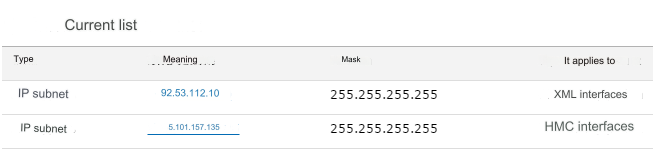
If during your work your server IP has changed, or your domain has changed, do not forget to reconfigure the XML interfaces.
Settings in the admin panel
Go to settings Currency exchange - Payment systems - WebMoney WMZ.
Settings only for types: Semi-automatic and Automatic.
WMID enter your WMID with which you registered the exchange office in the Megastock catalog. Wallet - enter your Z wallet with a prefix (example: Z191299006520), which belongs to the entered WMID and which you registered in the Megastock catalog. Secret Key - enter the character set that you entered in the WMZ wallet interface settings. Save the settings.
Other wallets are configured in exactly the same way, with the exception of a unique Secret Key for each wallet.
WMT restrictions
If payment is made to a third party wallet, which is prohibited by the rules of the WMT system, the interface will return an error:

For automatic and semi-automatic exchange from Webmoney to a card you need to link your card to WMID.
Mandatory conditions are the presence of a certificate in the WebMoney system that is not lower than a formal one.
Details here: https://wiki.webmoney.ru/projects/webmoney/wiki/proverka_bankovskoy_karty
If the card is not linked, the interface will return an error:
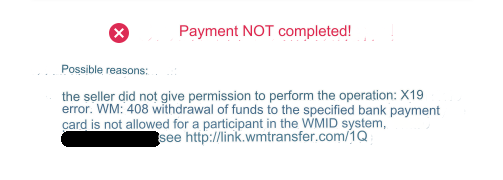
For automatic and semi-automatic exchange from Webmoney to card and bank Name and Last name must match those entered in certificate
If there is a mismatch, the interface will return an error:
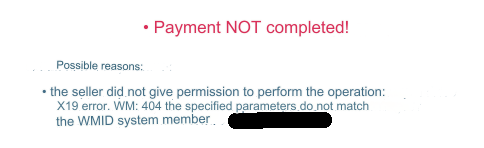
Bitcoin и Bitcoin Cash
WMT allows the exchange of WEBMONEY title units ON Bitcoin (to BTC addresses associated with WMX wallets)
WMT allows the exchange of WEBMONEY title units ON Bitcoin Cash (to BCH addresses associated with WMH wallets )
If the exchange takes place to BTC (BCH) addresses not associated with WMX (WMH) wallets, the interface will return an error:
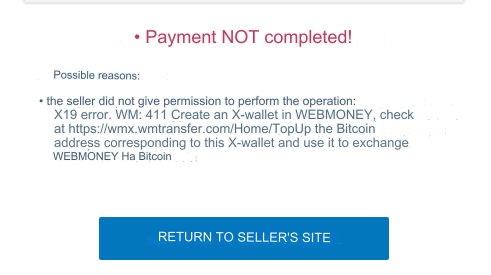
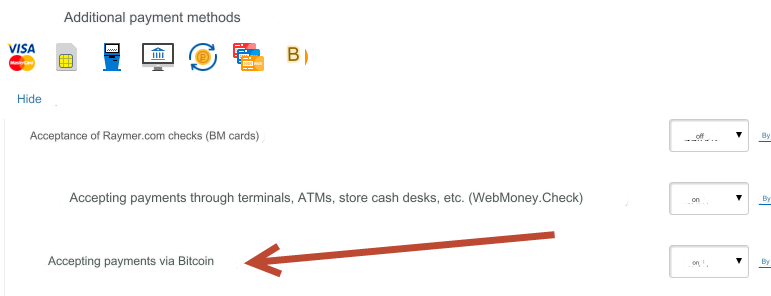
To use this option, in your wallet settings (Additional payment methods), enable Accept payments via Bitcoin:
Other settings
For a description of other settings, see the section: Payment systems
Last updated