
Heleket
Account settings
Register on the website: https://heleket.com/
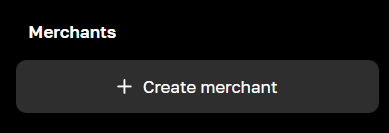
Login to your account, click the Create merchant button in the left navigation.
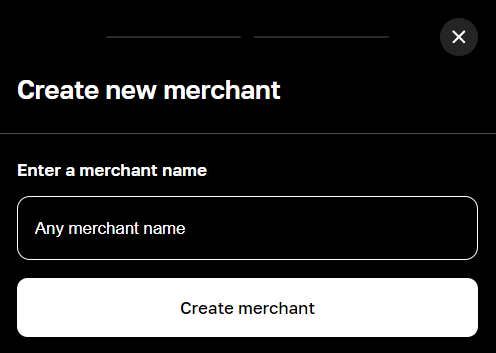
Enter any name for your merchant and confirm creation.
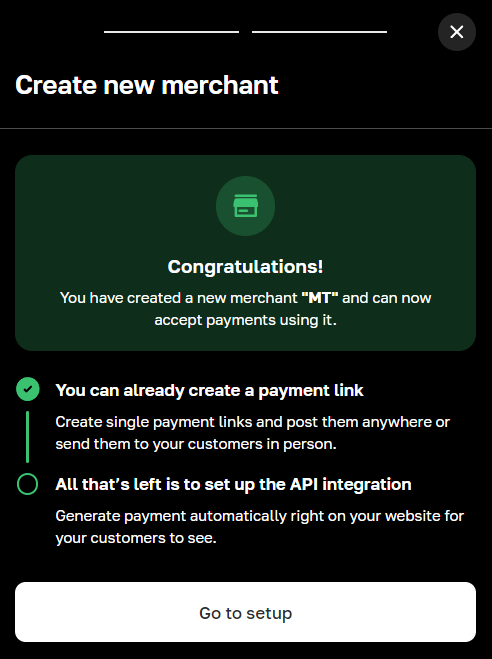
After creating a merchant, go to its settings by clicking on the Go to Setup button.
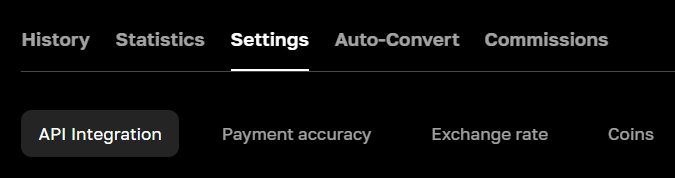
Or click on the merchant name in the left navigation and go to the Settings - API Integration tab.
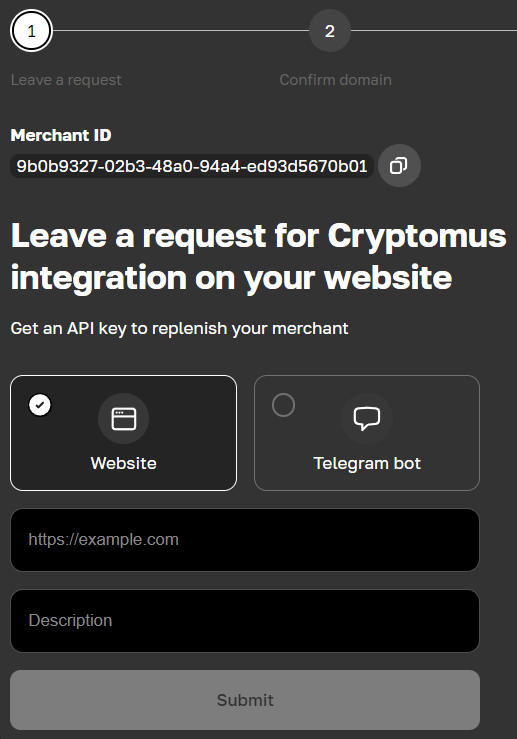
Enter the address of your site and its description. Confirm sending with the Submit button.
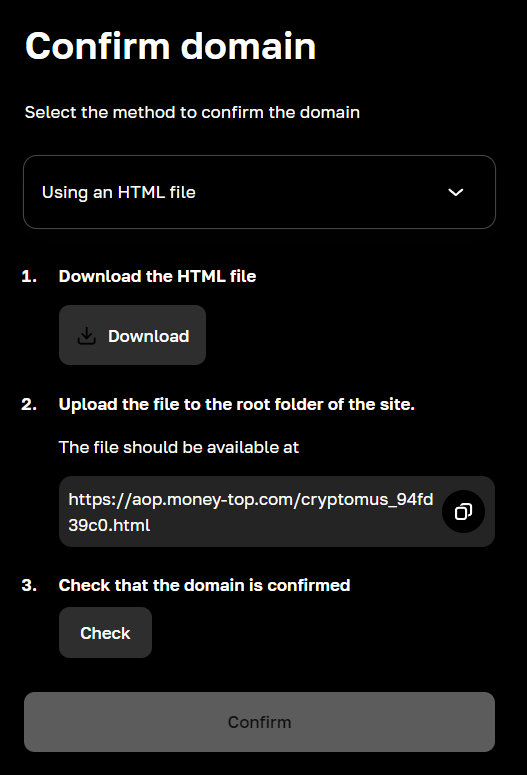
Next, select a method to verify domain ownership. The simplest is to upload a file (Using an HTML file).
Download the file (Download) and upload it to the root of your site.
After this, initiate a check (Check). When the verification is completed successfully (Success), submit your request for moderation (Confirm).
Wait for moderation and set up your merchant:
Tab Settings - Coin: list of currencies that will be available to pay the invoice and the discount/commission percentage for each of them.
Tab Auto-convert: setting up automatic conversion of incoming currencies to others.
Tab Commissions: list of tariffs and limits for all currencies.
After passing moderation, go to the Settings - API Integration tab.
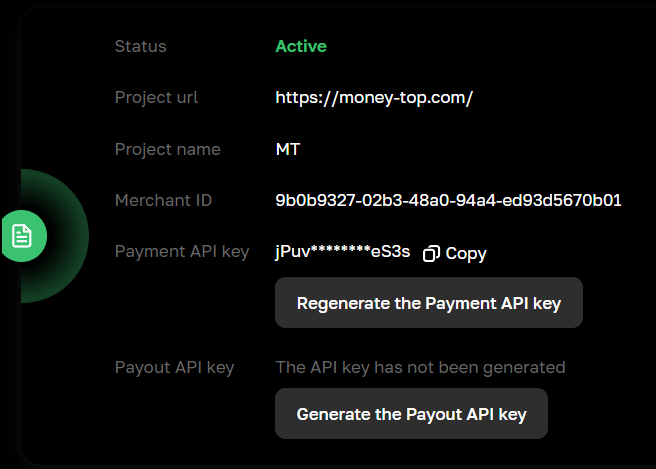
Copy Merchant ID and Payment API key for settings in the admin panel.
Click on the Generate the Payout API key button, on the next page click on the Generate button.
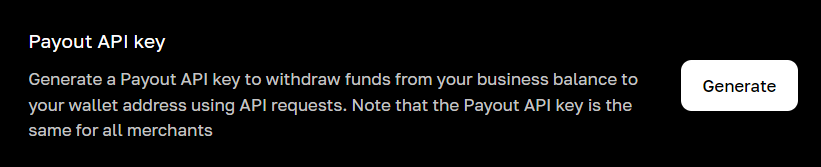
After confirmation you will receive a key, copy it for settings in the admin panel.
Settings in the admin panel
By default, the payment system is disabled.
Go to settings Currency exchange - Payment systems - Disabled - Heleket USDT
Settings only for types: Semi-automatic and Automatic
Merchant ID - from the merchant settings page of your Heleket account Payment API key - from the merchant settings page of your Heleket account Payout API key - from the merchant settings page of your Heleket account Network is a network for multi-network currencies. Possible values: eth, tron, bsc. Leave blank if network selection is not needed. Payment currency - the currency from which the balance will be withdrawn during payments. If it does not differ from the system currency, you do not need to enter it. Save the settings.
Adding a new payment card based on the Heleket API. In Bitcoin's example
Name of payment system - Any System type - Electronic currency Currency name - BTC Identifier - any free API - select bitcoin_cryptomus System currency - select BTC - Bitcoin Merchant ID - take it from the merchant settings page of your Heleket account Payment API key - take it from the merchant settings page of your Heleket account Payout API key - take it from the merchant settings page of your Heleket account Network - leave blank Payment currency - leave blank Save the settings.
Other settings
For a description of other settings, see the section: Payment systems
Last updated