
CoinPayments
Account settings
Register on the website: https://www.coinpayments.net/
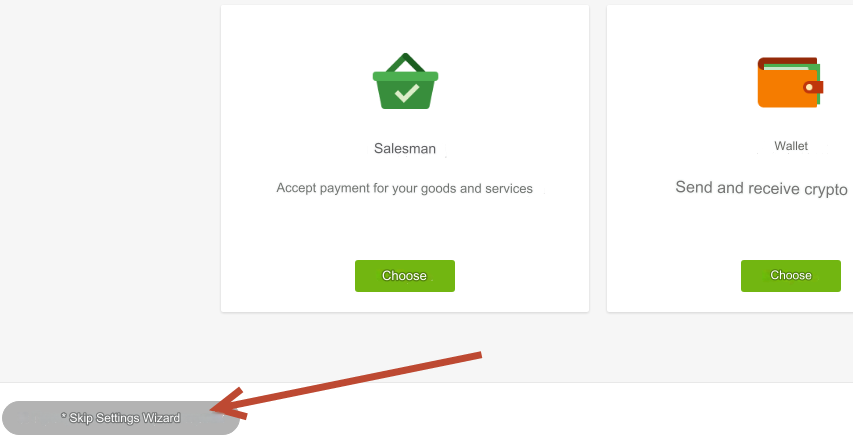
Log in to your account. Skip Settings Wizard
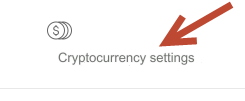
Go to the section: Cryptocurrency settings
Select Enabled for the cryptocurrencies you will use and update the settings.
Litecoin Testnet do not enable, currency for tests.
Go to the section: Account - Account Settings - Basic Settings
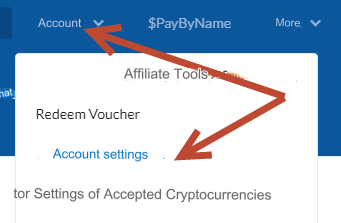
Your Seller ID - enter your ID in the admin panel, in the payment settings.
Go to the section: Account - Account Settings - Seller Settings
Enter: IPN Secret in Latin characters. For example: QgfjdkyrdY
Enter: IPN Secret in the admin panel, in the payment settings
IPN Verification Method - select HMAC
IPN link - leave blank
The remaining fields are optional. Upon request.
Go to the section: Account - API Keys - Generate a new key
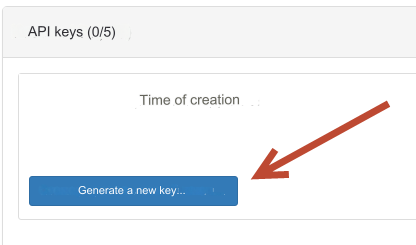
A Public Key and a Private Key
will be generated
Enter them in the fields: Public Key and Private Key in the admin panel, in the payment settings
In the same section, click Change access

API Key Settings - optional. Upon request.
API Key Permissions - leave selected only: get_tx_info balances create_withdrawal Allow auto_confirm = 1 in create_withdrawal
Click Update access
Settings in the admin panel
By default, a payment system with DASH currency has been added. It's called CoinPayment DASH.
Disabled by default: Currency exchange - Payment systems - Disabled.
Instead of the name CoinPayment you can enter your own.
Go to settings Currency exchange - Payment systems - Disabled - CoinPayment DASH.
Settings only for types: Semi-automatic and Automatic.
Currency name - DASH Merchant ID - enter the Merchant ID from the payment settings Account - Account Settings - Basic Settings IPN Secret - enter IPN Secret from the payment settings Account - Account Settings - Merchant Settings Public Key - enter the Public Key from the payment settings Account - API Keys Private Key - enter the Private Key from the payment settings Account - API Keys Save settings
Settings for other currencies
CoinPayments supports more than 50 cryptocurrencies
Let's look at an example of adding the cryptocurrency Monero
Add a new payment in the admin panel:
Name of the payment system - Monero System type - Electronic currency Currency name - XMR System code - XMR Identifier - monero API - select coinpayments System currency - select XMR - Monero Merchant ID - enter the Merchant ID from the payment settings Account - Account Settings - Basic Settings IPN Secret - enter IPN Secret from the payment settings Account - Account Settings - Merchant Settings Public Key - enter the Public Key from the payment settings Account - API Keys Private Key - enter the Private Key from the payment settings Account - API Keys Save settings
Other settings
For a description of other settings, see the section: Payment systems
Last updated