
Interkassa
Account settings
Register on the website: https://www.interkassa.com/
Login to your account and click on the link: Create a cash register: https://www.interkassa.com/account/checkout#create-modal
Site address - enter the URL of your site.
Checkout name - enter the name of your site.
Cash desk currency - select a currency.
By default, a cash register with UAH currency is added and changing/adding does not work. If you want to change the currency, contact Interkassa technical support.
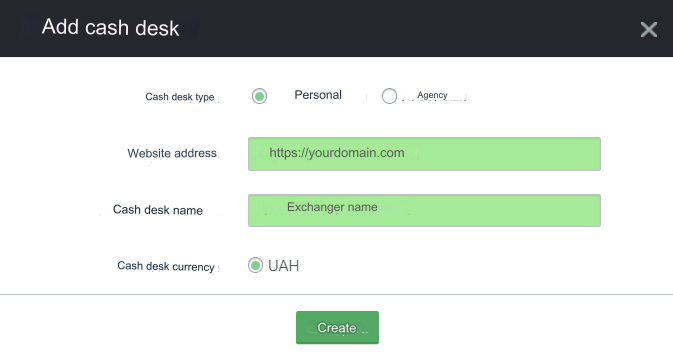
Next click Create
Click Confirm ownership of the cash register and follow the instructions for verifying the cash register.
Click Settings (pencil icon)
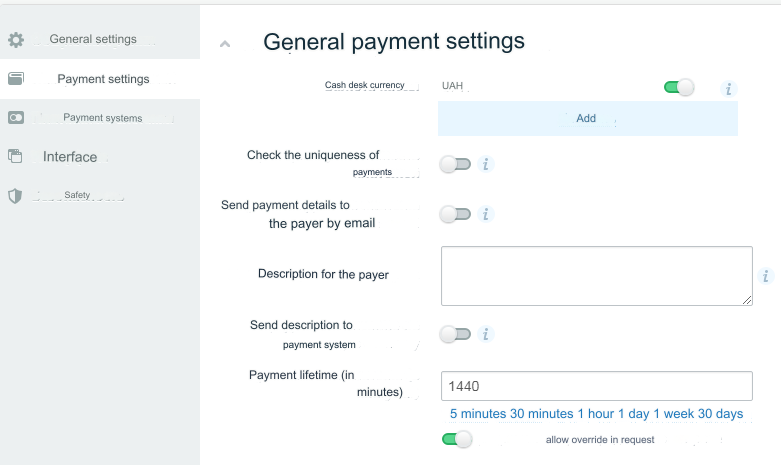
Payment settings tab
Cash desk currency - already selected in the first step. Check uniqueness of payments - DO NOT need to be enabled. Send payment data to the payer by email - optional. Description for the payer - optional. Transfer the description to the payment system - optional. Payment lifetime (in minutes) - 1 day. allow overriding in request - enable.
Payment systems tab
All settings are as you wish, except: Test payment system - Disable.
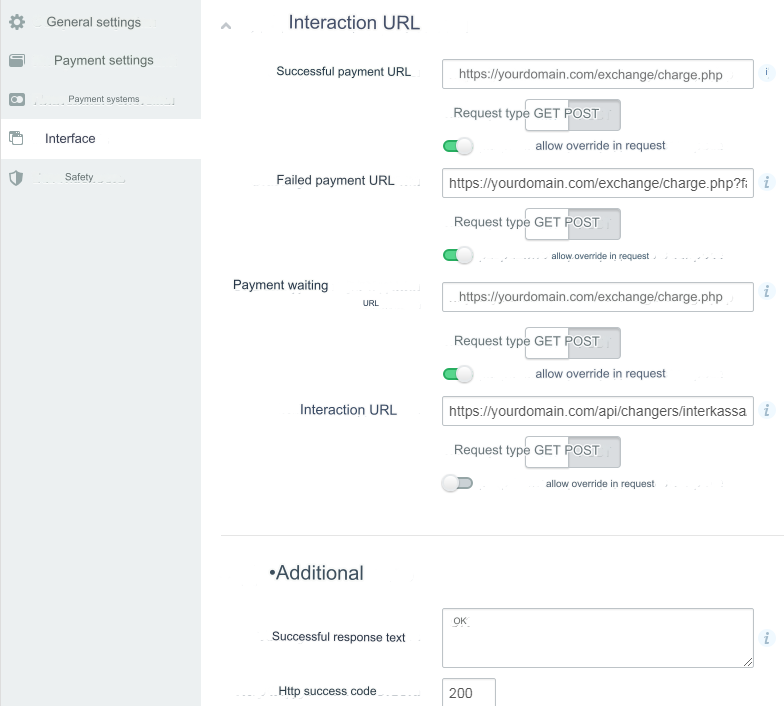
Interface Tab
Request type - POST for everyone URL of successful payment - https://yourdomain.com/exchange/charge.php allow override in request - Enable URL of unsuccessful payment - https://yourdomain.com/exchange/charge.php?fail allow override in request - Enable URL for waiting for payment to be processed - https://yourdomain.com/exchange/charge.php allow override in request - Enable Interaction URL - https://yourdomain.com/api/changers/interkassa/charge.php allow override in request - DO NOT include ADDITIONAL Successful response text - OK Http code of successful response - 200 yourdomain.com - replace with the URL of your site and save the settings.
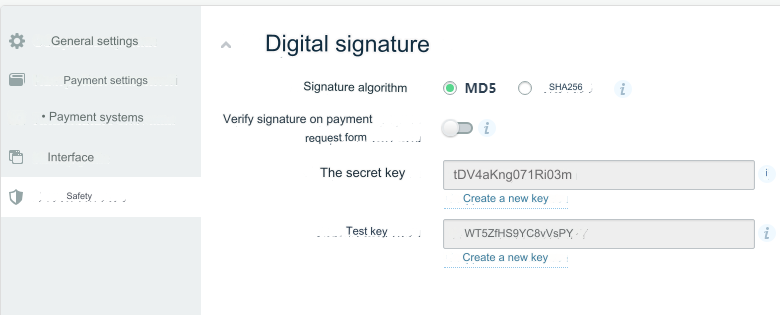
Security tab
Signature algorithm - MD5 Verify signature on payment request form - DO NOT include Secret key - a set of characters. Must match the one entered in the admin panel (Secret key) Test key - used for tests. See tips below: Test payments Save the settings. A nuance with the secret key. Be careful. Interkassa can generate a key containing symbols, which our system converts into mnemonics for security purposes. In this case, you should generate a new key that does not contain such characters. Example: Interkassa generated a secret key: iBnUd7uAetYt0x7z This key contains 0x characters (a prefix for numeric constants). For security reasons, x will be converted to a mnemonic: #120; In this case the signature will not match.
API settings
Go to your account settings (gear icon): https://www.interkassa.com/account/user/settings
Open the API
tabUser ID - save for settings in the admin panel Off/On - switch to the On position Key - generate an API key and save it for configuration in the admin panel IP filter - optional, enter your server IP
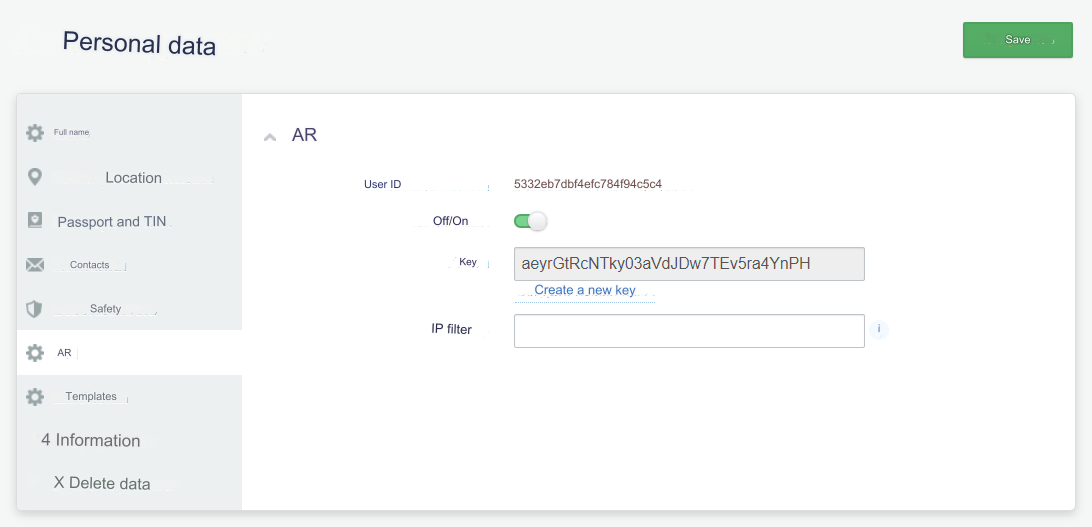
Save changes
Settings in the admin panel
By default, the payment system is disabled.
Go to settings Currency exchange - Payment systems - Disabled - Interkassa UAH
Merchant ID - enter the identifier. See screenshot below.
Secret key - enter the secret key from the Security of cash register settings page
User ID - enter the user ID from the API settings page
API key - enter the generated key from the API settings page
Method - where payments are made, possible values: card, webmoney, w1, advcash, perfectmoney, bitcoin, vk, facebook, google, steam, payeer, nixmoney, emoney, rbkmoney, qiwi, yandexmoney , beeline, mts, megafon, tele2, kyivstar, vodafone, lifecell, united
Your Merchant ID in the My cash registers section - character set:

Other settings
For a description of other settings, see the section: Payment systems
Last updated