
Capitalist
Account settings
Register on the website: capitalist.net
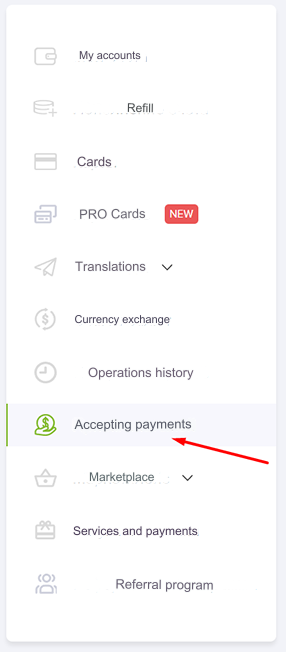
Login to your account and go to the Accepting payments section.
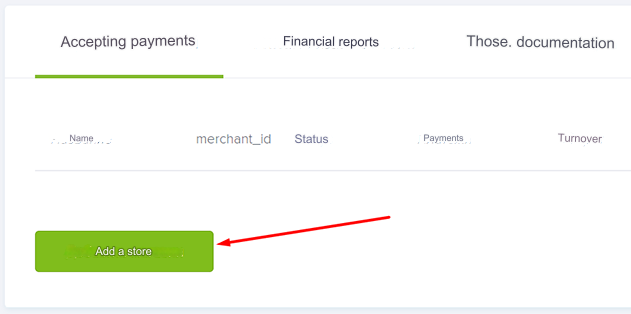
Click the Add store button.
Enter any name and address of your site
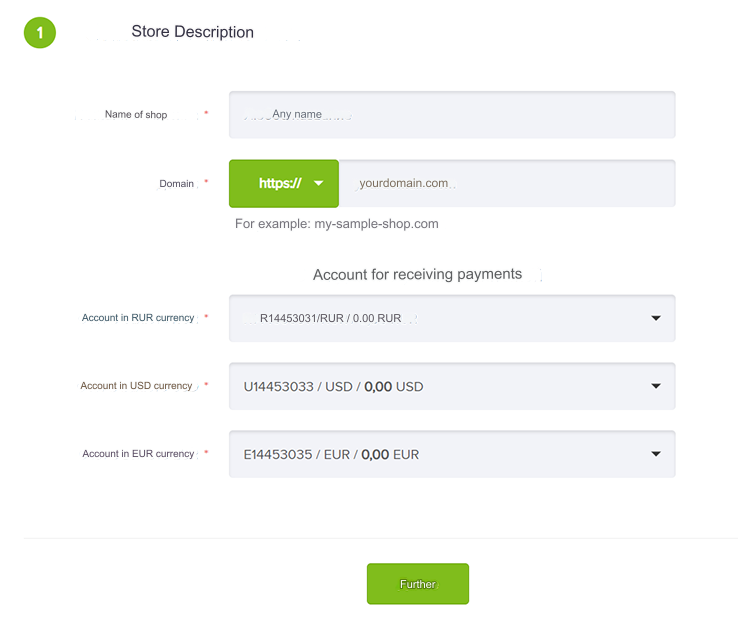
Click Next and follow the instructions on the site to confirm your domain.
In the list of stores, go to your store settings:
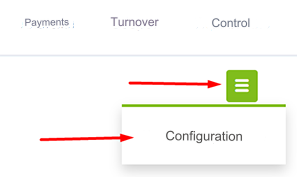
Fill out the name, description and category of the site at your discretion.
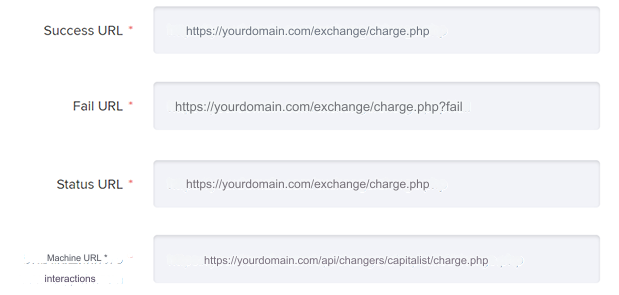
Fill in the fields (replace yourdomain.com with your website address):
Success URL - https://yourdomain.com/exchange/charge.php
Fail URL - https://yourdomain.com/exchange/charge.php?fail
Status URL - https://yourdomain.com/exchange/charge.php
Machine interaction URL - https://yourdomain.com/api/changers/capitalist/charge.php
Save settings
To set up payments, you must pass verification and request access to the API from the support service.
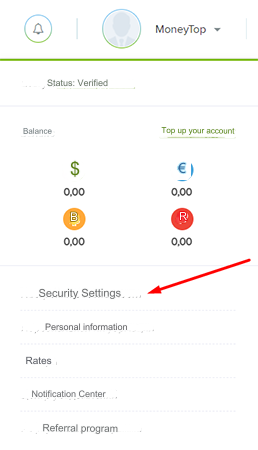
After gaining access, click on your login and go to the security settings page:
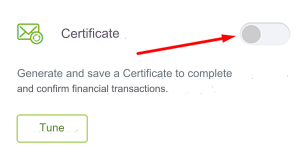
Find the Certificate option and activate it:
Enter the password for the certificate and click Next.
Wait for the certificate to be generated, download it and click Activate.
Upload the certificate to the api/changers/capitalist folder of your server.
Settings in the admin panel
Go to settings Currency exchange - Payment systems - Disabled - Capitalist USD
Settings only for types: Semi-automatic and Automatic
Account - a fiat currency account from which funds for payments are debited. If not specified, it is selected automatically. For cryptocurrencies there is no need to specify. Login - your login in the Capitalist system, not email. Password - your account password. Merchant ID - store identifier for accepting payments, indicated on the stores page as merchant_id. Secret key - the store's secret key. Certificate file - name of the certificate file without .pem Certificate password - the password you entered when generating the certificate. Payment method code - indicate only to limit the payment of the application to one method. Payout method code - enter the payout method code depending on the type of account to which the payout is made. Network is a network for multi-network currencies. Possible values: ERC and TRC. Leave blank if network selection is not needed. Save the settings.
Examples of payment method codes: capitalist, bitcoin, usdt-erc20, usdt-trc20, yandexmoney, qiwi, cards
Examples of payment method codes: CAPITALIST, WM, EXTERNALSEPA, YANDEX, RUCARD, UKRCARD, KZCARD, UZCARD, QIWI, BITCOIN, ETH, USDTERC20, USDTTRC20, USDCERC20
Supported currencies
Capitalist supports the following currencies: USD - US Dollar EUR - Euro UAH - Ukrainian hryvnia KZT - Kazakhstani tenge RUB - Russian ruble UZS - Uzbek som USDT - Tether BTC - Bitcoin ETH - Ethereum USDC - USD Coin
Adding a new payment system based on the Capitalist API. In the USDT ERC20 example
Name of payment system - Any System type - Electronic currency Currency name - USDT ERC20 Identifier - any free API - select capitalist System currency - select USDT - Tether Account - leave empty Login - enter your login. Password - enter your password Merchant ID - enter your merchant_id. Secret key - enter the store’s secret key. Certificate file - enter the name of the certificate file. Certificate password - enter the certificate password. Payment method code - enter usdt-erc20 or leave blank. Payout method code - enter USDTERC20. Network - enter ERC. Save the settings.
Other settings
For a description of other settings, see the section: Payment systems
Last updated