
EXMO
Account settings
Register on the website: https://exmo.me/ru/
Go to: Profile - Settings - API.
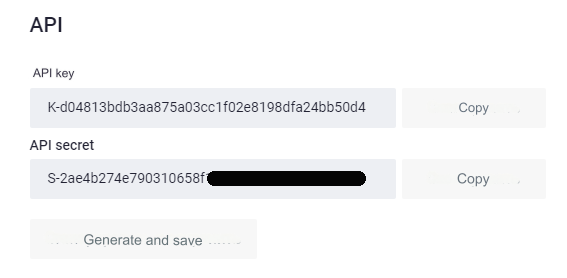
Copy and save the API key and API secret (you will need it in the admin panel).
Be sure to set up two-factor protection. Otherwise, the methods will not be connected.
Go to: Profile - Settings - Security.
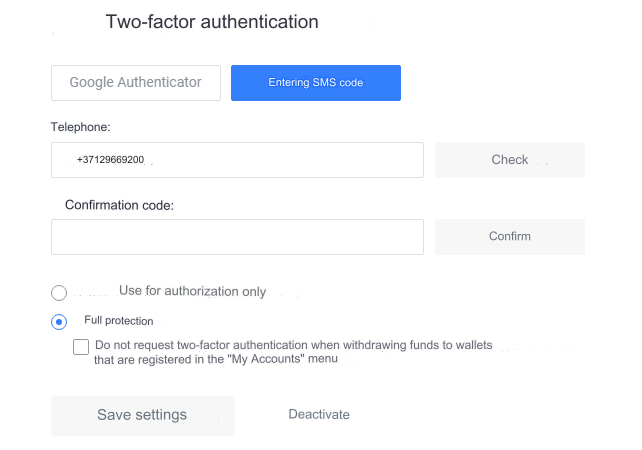
To connect methods, create a request to technical support: https://support.exmoney.com/hc/ru/requests/new.
Example:
Topic: Activating Methods
Description:
Please activate the methods:
withdraw_crypt
excode_create
excode_load
Thank you
Wait for a response to your email about activating the methods.
Settings in the admin panel
The exchange is disabled by default.
Go to settings: Currency exchange - Payment systems - Disabled - EXMO USD
Settings only for types: Semi-automatic and Automatic
API Key - enter the API key from the EXMO settings Profile - Settings - API API Secret - enter API Secret from the EXMO settings Profile - Settings - API Save the settings.
Adding another currency based on the EXMO API. In the RUB example
Name of payment system - EXMO System type - Exchange Currency name - RUB Identifier - exmorub API - select coupon_exmo System currency - select RUB - Russian ruble API Key - enter the API key from the EXMO settings Profile - Settings - API API Secret - enter API Secret from the EXMO settings Profile - Settings - API Save the settings.
How to create an EXMO receipt (code)?
The exchange supports the generation of EXMO Code for cryptocurrencies.
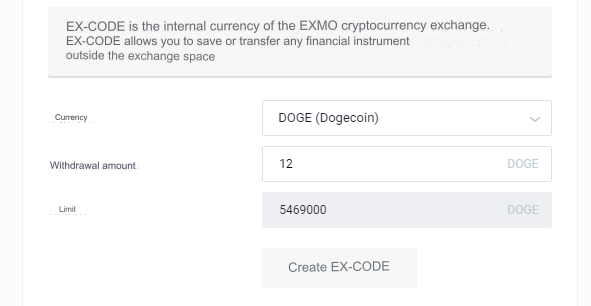
Go to the section: Wallet.
Click on the Withdraw button opposite the EX-CODE currency.
From the Currency list, select the currency of the check to be created.
In the Withdrawal amount field, indicate the denomination of the check.
Enter the amount to withdraw and click the Create EX-CODE button
Exchange for cryptocurrency
The EXMO exchange supports the ability to exchange for cryptocurrency. A separate API has been implemented. The process is like this: 1) Payment system => EXMO Exchange. The client sends you the currency he chose and receives the cryptocurrency to the entered address. 2) EXMO Exchange => Payment system. The client sends you an exchange coupon and receives the currency he chose.
EXMO exchange API does not provide the ability to automatically enter cryptocurrency. Only EXMO Code!
Settings in the admin panel for cryptocurrency exchange
By default, the API is configured for the cryptocurrency Dogecoin.
The exchange is disabled by default.
Go to settings: Currency exchange - Payment systems - Disabled - EXMO DOGE
Settings only for types: Semi-automatic and Automatic
API Key - enter the API key from the EXMO settings Profile - Settings - API API Secret - enter API Secret from the EXMO settings Profile - Settings - API Save the settings.
The settings in the exchange account are identical to the EXMO Code settings.
Adding another cryptocurrency based on the EXMO API. Example in DASH
Name of payment system - EXMO System type - Exchange Currency name - DASH Identifier - dashexmo API - select exmo System currency - select DASH - Dash API Key - enter the API key from the EXMO settings Profile - Settings - API API Secret - enter API Secret from the EXMO settings Profile - Settings - API Save the settings.
Attention! Please pay attention to the minimum and maximum withdrawal amounts. For example, for DOGE cryptocurrency: Minimum 300 DOGE Maximum 5,000,000 DOGE Commission 1 Doge When setting the minimum and maximum amounts for exchange by direction, take this into account, otherwise the EXMO API will return an error. You can view the restrictions in your EXMO account: Wallet - Withdraw (opposite the desired cryptocurrency)
Other settings
For a description of other settings, see the section: Payment systems
Last updated