
Privat24
Interface settings
Log in: https://www.privat24.ua
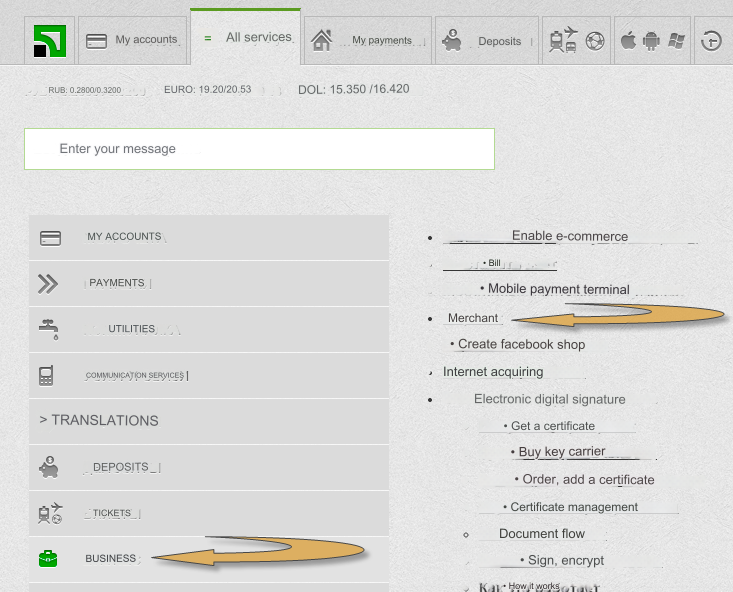
Go to the tab: All services - Business - Merchant
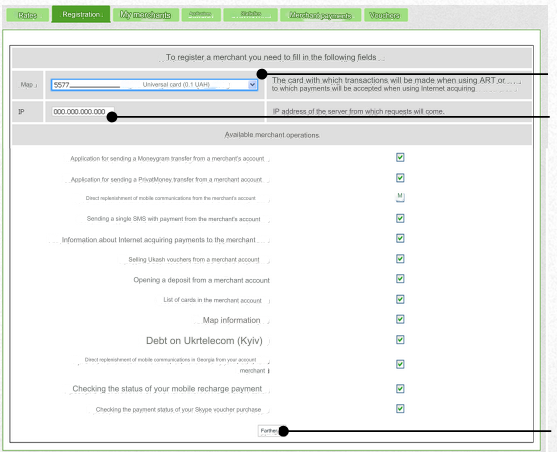
Next go to the tab: Registration
Select the card to which you will receive and send payments and enter the server IP.
Available merchant operations - be sure to check the box:
Payments within Ukraine from a merchant’s account
Payments to a Privatbank card/account from a merchant account
P2P payments from the merchant account
Statement of a legal entity's merchant account
Statement of an individual merchant account
Balance on an individual merchant account
Map information
Click: Next
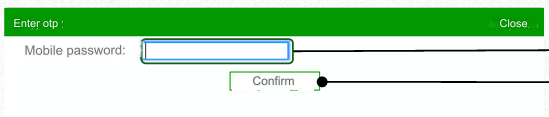
An SMS message with a password will be sent to your mobile phone.
Enter the received password to confirm registration.
The system will issue a 32-digit unique password. Save it.
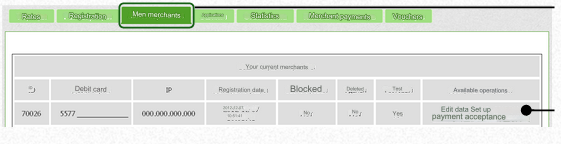
Next go to the tab: My merchants
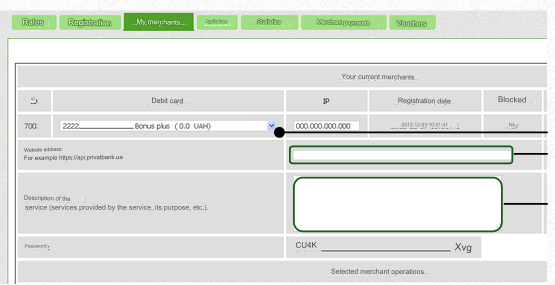
Follow the link: Edit data
Select the card to which you will receive and send payments.
Enter your website address.
Enter the server IP for outgoing requests. Look at your main admin panel: Server IP for outgoing requests.
Enter a description of the service.
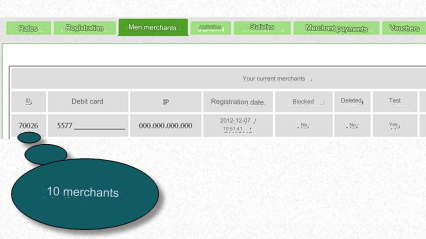
You need to create a separate merchant for each currency, otherwise you will lose money on conversion.
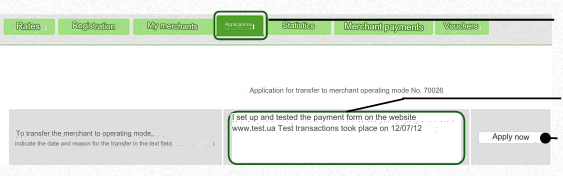
To put the merchant into working mode, go to the Orders tab.
Example text: I set up and tested the payment form on the site: yourdomain.com (yourdomain.com - replace with your URL)
Click the Submit Application button.
Settings in the admin panel
Privat24 USD/EUR are disabled by default. Enable: Currency exchange - Payment systems - Disabled - Privat24 USD/EUR
Go to settings Currency exchange - Payment systems - Privat24 USD/EUR/UAH
Settings only for types: Semi-automatic and Automatic.
Merchant ID - enter the merchant ID. Account phone - your account login phone number. Merchant password - enter the merchant password that you received from Privat24. Card number - enter the card number in Privat24 for which you receive payments. Save the settings. Important! Privat24 takes a commission from the recipient Therefore, the real commission is taken into account in the application processing files. In the admin panel in the field: Incoming system commission enter the real commission. At the time of writing the documentation commission: 2% If the Incoming system commission is specified incorrectly, you will receive the error: The hash of the exchange amount does not match
Other settings
For a description of other settings, see the section: Payment systems
Last updated