
Paxum
Merchant setup
Register on the website: https://paxum.com
It is necessary to pass verification.
A screenshot of your passport or driver's license is required.
Screenshot (preferably PDF) of an invoice for services (electricity, Internet, etc.), where there is the address of your place of residence.
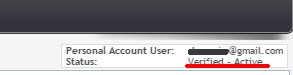
Your account status should be Verified - Active.
Go to: Merchant Services - API - API Settings
Click Enable API and enter the code sent to you by E-mail
Click Generate New Shared Secret. Enter the sent key in the admin panel: (Currency exchange - Payment systems - Paxum USD/EUR - Shared Secret API)
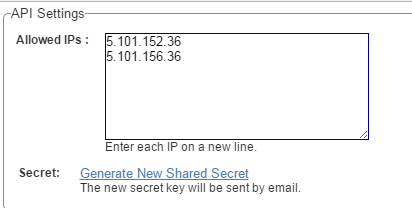
API Settings - enter the IP of your server for outgoing requests. Look on your main admin panel: Server IP for outgoing requests.
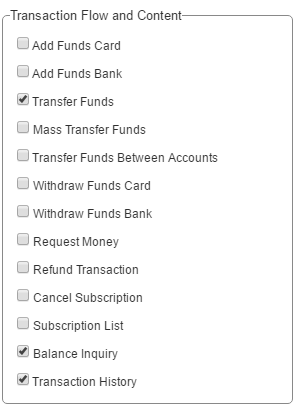
Transaction Flow and Content - check: Transfer Funds Balance Inquiry Transaction History
Save settings.
Go to: Merchant Services - IPN - IPN Settings
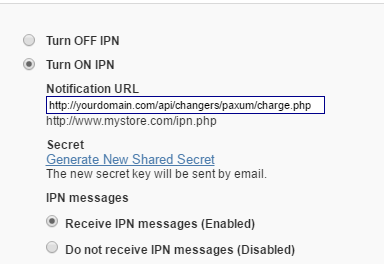
Select: Turn ON IPN
Notification URL: https://yourdomain.com/api/changers/paxum/charge.php (yourdomain.com - replace with your domain)
Click: Generate New Shared Secret. Enter the sent key in the admin panel: (Currency exchange - Payment systems - Paxum USD/EUR - IPN Shared Secret)
IPN messages - optional.
Save settings.
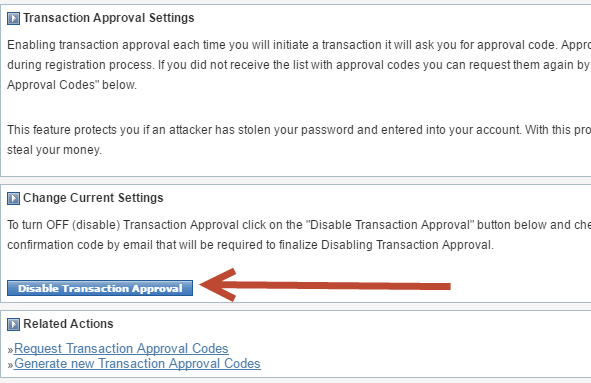
Go to: Security - Transaction Codes - Transaction Approval Settings
Disable or activate sending codes to you by E-mail
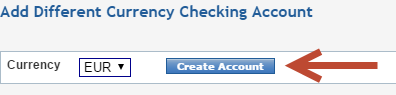
Add currency EUR
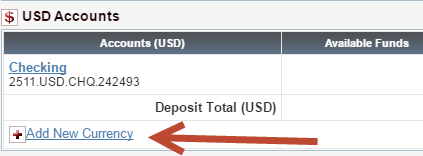
On the main account page, click: Add New Currency
Settings in the admin panel
By default, the payment system is disabled.
Go to settings Currency exchange - Payment systems - Disabled - Paxum USD/EUR
Settings only for types: Semi-automatic and Automatic
E-mail - enter the E-mail of your Paxum account IPN Shared Secret - enter IPN Shared Secret from Paxum Settings Merchant Services - IPN - IPN Settings API Shared Secret - enter API Shared Secret from Paxum settings Merchant Services - API - API Settings Save the settings.
Other settings
For a description of other settings, see the section: Payment systems
Last updated