
Payeer
Merchant setup
Register on the website: https://payeer.com
Login to your account and go to the section: Account - Actions - Merchant Settings
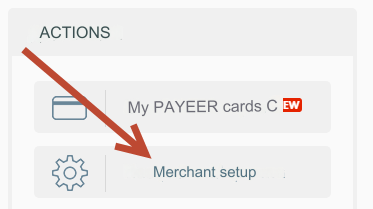
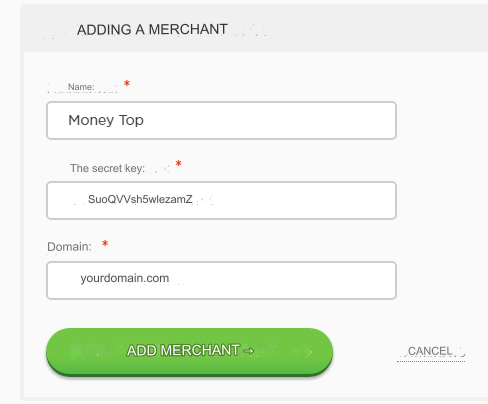
Click Add merchant and fill in the fields:
Name - at your request. Usually the name of your site.
Secret key - enter a set of Latin characters.
Domain - enter your domain.
Next, you confirm ownership of your site according to the instructions.
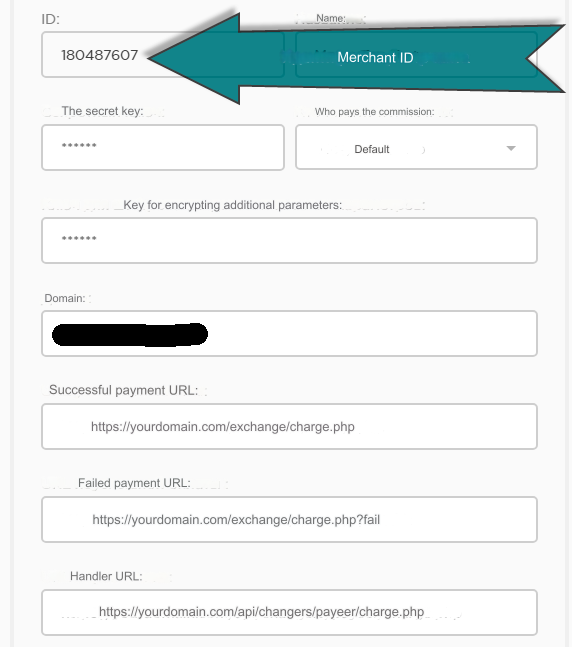
And fill in all the required fields:
Who pays the commission - by default. * - see hint below Key for encrypting additional parameters - leave blank. This field is not documented by payment developers URL of successful payment - https://yourdomain.com/exchange/charge.php (yourdomain.com - replace with your website URL) URL of unsuccessful payment - https://yourdomain.com/exchange/charge.php?fail (yourdomain.com - replace with your site URL) Handler URL - https://yourdomain.com/api/changers/payeer/charge.php (yourdomain.com - replace with your site URL) Notification server: - you can leave “Automatic selection” (this setting may no longer exist)
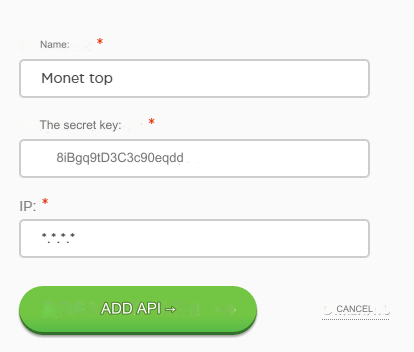
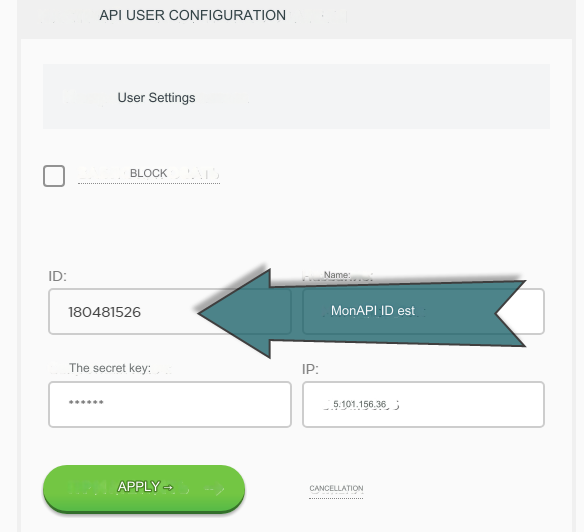
Next go to the Mass Payouts tab and click Add API

Name - optimal name of the store
Secret key - a set of Latin characters
IP - Look on your main admin panel: Server IP for outgoing requests
Save the settings.
Wait for your site to be moderated.
Settings in the admin panel
By default, the payment system is disabled.
Go to settings Currency exchange - Payment systems - Disabled - Payeer USD/EUR/RUB
Settings only for types: Semi-automatic and Automatic.
Merchant ID - enter the merchant ID. See screenshot above Merchant secret key - enter the secret key from the merchant settings interface API ID - enter the API identifier from the Mass Payments interface Login - enter your login in the Payeer system (example P9158956) API secret key - enter the secret key from the Mass Payouts interface Save the settings. Who pays the commission - merchant settings. With the Payeer system API, it only displays the amount that the client paid. Regardless of commission settings. And this amount differs from the one that the exchanger should receive if the commission is paid by the client. Use the “default” setting and compensate for your commission costs by increasing the exchanger’s commission. Otherwise, an error is guaranteed: Transaction history error
Other settings
For a description of other settings, see the section: Payment systems
Last updated