
Payment systems
This section contains a list of all payment systems. You can disable any payment system. You can sort payment systems (change the order in which they are displayed on the site).
Where to start
A quick guide to the initial settings of the exchanger
Global settings
Global settings - settings that are used in each system.
We will consider them separately so as not to duplicate them in the description of the settings of each payment system.
Payment system name - the name of the payment system displayed on the site.
System type (only for added payments)
Electronic currency - standard set of fields.
Bank - the "Account Number" field is displayed in a large text field and 2 fields First Name and Last Name are added at the second step of completing the application.
Bank card - 2 fields First Name and Last Name are added at the second step of completing the application.
Exchange - a coupon entry field is added in the 3rd step. A different algorithm for completing and processing an application.
Currency name - name of the payment currency displayed on the website. For example USD, EUR, RUB. In this field you can enter any name. It is important to make it clear to your customers.
System code - system code for the monitoring file. If the code is not specified, then this payment will not be displayed in the monitoring file Payment system codes can be viewed at: 1) our website 2) BestChange
Identifier - unique identifier of the payment. More details in the section: Processing API. This field cannot be changed for system payments.
System currency - select a currency from the drop-down list.
Decimal places - all amounts of this payment system will be rounded to the specified number of digits. Auto - 2 digits for fiat currencies, 8 digits for cryptocurrencies.
API - directory containing payment system processing files. More details in the section: Processing API. This field cannot be changed for system payments.
Category in the filter - in which category of the currency filter this payment system will be displayed. If you do not select a category, it will be displayed only in the All category. The option is displayed only when the Currency filters field in module settings is filled in.
Exchange types - for added systems only Operator processing if there are no processing files. See section: Processing API. For system payments, options are available. See below Exchange Types.
Verification of card for invoicing - Check whether the card specified by the user is verified. Only for the “Bank card” system type and the “Invoicing” exchange type.
Min. invoicing amount - the minimum allowed amount for invoicing Only for the "Invoicing" exchange type.
Max. invoicing amount - the maximum allowed amount for invoicing Only for the "Invoicing" exchange type.
Icon - you can select an icon for this payment. Icons in the directory: api/changers/icons/
Payment in a new window - opens the 4th step of the exchange in a new tab, if enabled. Step 4 - switch to merchant or other payment types. The original tab goes to the exchange status page.
Stock - currency reserve. For the Automatic type, the availability of stock in your accounts (wallets) is checked. Payment systems API is used.
If there is not enough stock, a notification will be displayed: Insufficient funds in the administration account
This check takes place at the pre-request before payment to ensure that there are enough funds in your accounts and the transaction will be successful. It is recommended to enter real reserves. Upon completion of the transaction, the stock will change. The stock of incoming currency will also change if you have the option enabled in the settings: Automatic replenishment of the stock of incoming currency
Automatic receipt of reserves - automatic receipt of currency reserves in accounts/wallets. Payment systems API is used.
How the option works: When changing payment details, check the box Auto receipt of stock - Enabled, having previously entered all the necessary data for automatic exchange. Save the settings. The balance will be changed to the current one if all the necessary data is entered correctly. Otherwise, the system will return an error, the balance will not be changed and the Auto receipt of stock status will change to Disabled. Auto receipt of stock - Enabled and the stock will change after each SUCCESSFUL transaction to the current one. If one of the payment cards does not have this option, then obtaining a balance for this payment card is impossible.
Incoming system commission - payment system commission for the currency the user is changing from. Incoming to the admin account. The first field is a fixed commission, the second field is a percentage commission.
Outgoing system commission - for the currency the user exchanges for. Outgoing from the admin account. The first field is a fixed commission, the second field is a percentage commission.
Minimum commission - the minimum commission of the system. If the system has a minimum commission.
Maximum commission - the maximum commission of the system. In case the system has a maximum commission limit. Using the Webmoney system as an example: WMZ no more than 50, WMR no more than 1500, etc. See Webmoney tariffs
Minimum exchange amount (incoming) - less than the entered amount, application processing is impossible if the payment system is incoming (exchange from it).
Maximum exchange amount (incoming) - more than the entered amount, the application cannot be completed if the payment system is incoming (exchange from it).
Minimum exchange amount (outgoing) - less than the entered amount, the application cannot be completed if the payment system is outgoing (exchange for it).
Maximum exchange amount (outgoing) - more than the entered amount, the application cannot be completed if the payment system is outgoing (exchange for it).
Hint for filling out the account/wallet field - displayed in the second step of completing the application for the account or wallet field. Example of filling out for the WebMoney WMR payment card: Your R wallet . For example: R777777777777
Regular expression - a regular expression for the correctness of filling out the account/wallet. Empty field = not checked.
Transaction activity period (Automatic, Semi-automatic) - transaction activity period in minutes for the types: Automatic and Semi-automatic. Don't use option, enter 0 The user must complete the transaction within the allotted time. When the time expires, the message Your exchange request has been cancelled. The deadline has expiredand the exchange will no longer be possible. Don't set the deadline too short. Optimally 30-45 minutes
Activity period of the application (Processing by the operator) - Deadline for payment of the application in minutes for the type: Processing by the operator. Do not use the option, enter 0. The user must pay for the application within the allotted time. Do not set the deadline too short, especially if payment is from banks.
For details, see the section: Activity periods
Text for type Processing by operator - will be shown to the user at the 3rd step of the exchange, instead of redirecting to the payment system. This field is where you enter information for the user. His further actions and payment details.
Variables can be used:
{fsystem} - the first currency - the user will pay
{tsystem} - the second currency - the user will receive
{fsyspurse} - account/wallet of the first currency (admin) - only if there is an API and there is an account/wallet field
{tsyspurse} - account/wallet of the second currency (administrator) - only if there is an API and there is an account/wallet field
{email} - User email
{oid} - transaction ID
You can use HTML tags.
Newline = caret to new line (ENTER).
Text example:
You have ordered an exchange: {fval} {fsystem} for {tval} {tsystem}
Transaction ID: {oid}
Your next steps:
1) Transfer {fval} {fsystem} to account XXXXXXXX
2) Any additional text that you consider necessary to add to this field.
3) The transaction is valid for 24 hours.
A notification will be sent to your E-mail {email} that the processing of your application has been completed.Example of text with HTML formatting:
You ordered an exchange: <strong>{fval} {fsystem} to {tval} {tsystem}</strong>
Transaction ID: <i>{oid}</i>
Your next steps:
Transfer <font color="green">{fval} {fsystem}</font> to the account <font color="red">XXXXXXXX</font>
<a href="https://money-top.com/" target="_blank">Instructions here</a>
What it will look like:
You have ordered an exchange:
{fval} {fsystem} to {tval} {tsystem}
Transaction ID: {oid}
Your next steps:
Transfer {fval} {fsystem} to the account XXXXXXXX
Variables will be replaced with data.
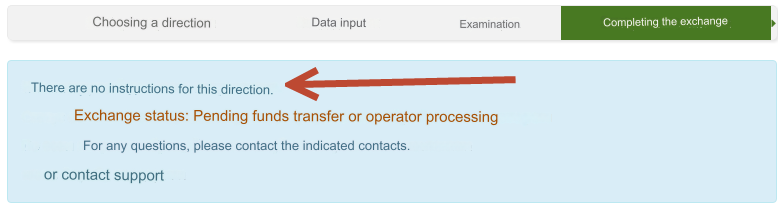
If the text for this type is not entered, then at the 3rd step of completing the application the following will be displayed: No instructions for this direction. Be sure to fill out the texts
Note - display of the Note field at the second step of completing the application. You can turn it off, turn it on, and turn it on as required. If you turn it on , as mandatory filling, we recommend writing to your clients what to enter in this field (use the option Texts by directions)
Check card verification - Card verification will be checked if all three settings are enabled: this setting, the setting in the directions options (Mandatory payment card verification) and the setting in user groups (Mandatory payment card verification).
Checking the balance at the 3rd step of the exchange - only for automatic exchanges. If enabled, checks the administrator's account balance before submitting an application. Transfer to semi-automatic - if the balance is not enough for automatic payment, the exchange type will be changed to semi-automatic.
Display the "Account" field - display the Account/Wallet/Address/Card field, regardless of the fields in the API. Disabling may break the API if this field is required.
Field name "Account" - change the name of the field "Account". If not filled in, the standard value from the API settings or depending on the system type is displayed.
Display full name fields - display first and last name fields, regardless of the type of payment system. Disabling may break the API if these fields are required.
Upload receipt - whether the upload of the payment receipt file will be requested before confirming the payment of the application. Only for the type Processed by operator.
Status - payment status. Active or disabled.
Exchange types
Attention. After setting up payment systems, be sure to set the types for each direction in the section: Rates
If 2 or more types are checked, then the user can select any of the available types when submitting an application.
If you want to prevent users from selecting types, then check the box for one of the available types. (recommended)
If none of the types are checked, this system will be disabled.
1) Automatic - a fully automated process. The user pays for the application using the payment interface and receives the ordered amount. No operator intervention is required if the transaction is successful. See section: Transactions After paying for the application, receiving funds for the application and returning to your site, the user is notified with information about the transaction.
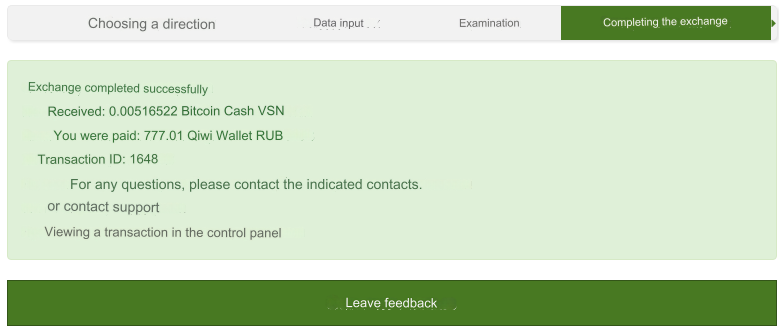
2) Semi-automatic - the user fills out an application and can pay for it using the payment interface. After paying for the application and returning to your website, the user will receive a notification with information about the transaction.
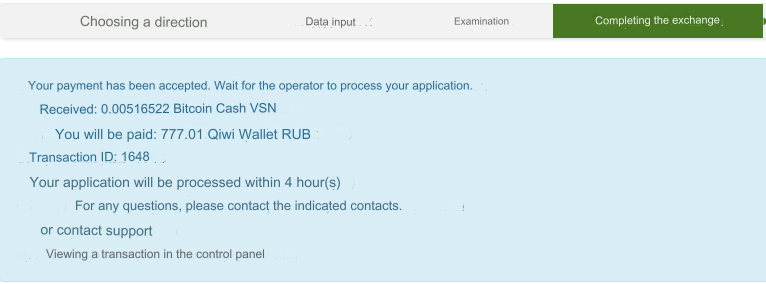
3) Processing by the operator - the application is completed on the website. Mandatory processing of the application by the operator is required. See section: Transactions
4) Invoicing - a separate type not used in regular exchanges Used for issuing invoices. See section: Invoicing
Please note. The program does not use parsers. Only officially documented API of payment systems. That is why payment systems are divided by type. If the API of the payment system does not have the ability to check history, then it is impossible to carry out a secure automatic exchange.
Last updated