
Templates
Template Update
What you need to know and do when installing an update. The update involves replacing ALL files from the update archive. Otherwise, the program may work with errors or stop working. If you made your own design and created a directory of your own design, then ALL design files from the update archive template/default/ should be copied (replaced) into your design directory. Compare the files of the previous version with the current version for changes and make changes to your templates.
See section Updating templates
You are going to make your design. Your actions:
1) Directories with all subdirectories and files: template/default/ and skin/default/ download to your computer.
2) Rename the directories: template/default/ and skin/default/ to template/mydomain/ and skin/mydomain/
3) Upload new folders to the server.
 4) Write your template data into the file u_name.inc.php
<?php
$names = array (
'default' => 'Default',
'mydomain' => 'My Template',
);
?>
5) The same thing with the styles directory.
 6) In the file u_name.inc.php enter your style data
<?php
$names = array (
'default' => 'Default',
'mydomain' => 'My Template',
);
?>
7) In the admin panel Settings - Configuration switch to your template and styles.
 8) Save the settings and update the cache Settings - Caching - Update entire cache.
9) You work only with files your template. You can change whatever you want. There is no need to change the template by default.
It is not recommended to delete the default templates and styles directory. You can always check for possible errors during layout by switching the template to the default one.
For each information module, you can create any number of template files for all sections.
Thus, the design and display of information in each information module may differ.
Moreover, each information module can use each of the pages with different template files.
Structure of templates and styles
By default, all templates are in the directory: template/default/
header.htm - top for all modules except the module Users
footer.htm - bottom for all modules except the module Users
Template files for each module in the directory: template/default/module name.
By default, all styles in the directory: skin/default/, and next to the directory with images. Exception module Users
Module styles are automatically loaded based on the module name. The name of the module corresponds to the name of the style.
Examples of creating your own template in a cloned module Articles
Suppose you cloned the module Articles and want to make a News section
You can add your own templates from the admin panel. We will look at adding templates by uploading them to the FTP server using the manager.
The templates of the cloned module are the same as the templates of the source module and are located in the same directory. In our case, in the directory: template/default/article/.
After you have cloned a module, a section for managing this module will appear in your admin panel. In our case: Modules - News.
Go to the section: Module settings and see:
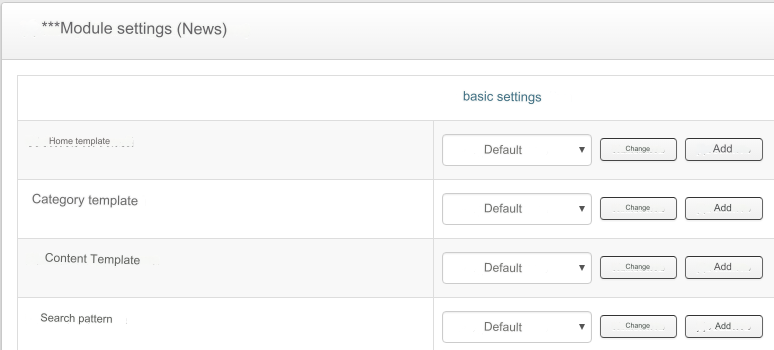
I.e. We don’t have our own templates yet and there’s nothing to choose from.
Copy existing templates in which we want to change the design: index.htm, list.htm, show.htm and search.htm
Rename them to: index-news.htm, list-news.htm, show-news.htm and search-news.htm
We change the design of these templates, if necessary using our own tags
We use our own style for the cloned module by uploading the style file to the styles directory skin/default/: skin/default/news.css
For the convenience of choosing your own templates, enter the names of your own templates in the admin panel. Open the file: u_name.inc.php, which is located in the directory: template/default/article/
Add the names of your own templates to this file:
Upload the modified file u_name.inc.php to the server.
Go to the section: Module settings and select the created templates for each section:
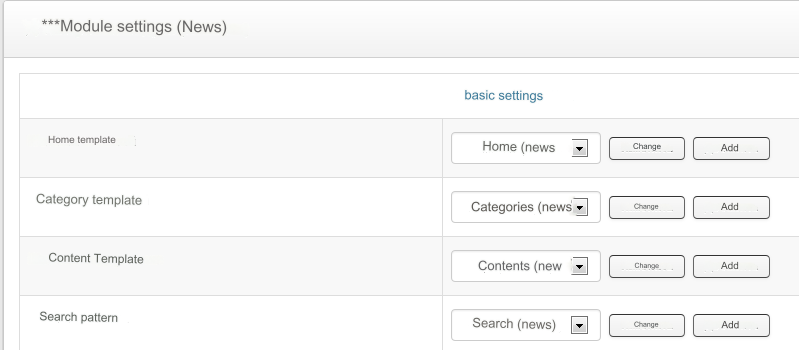
Any of the templates you select can be used when adding information.
What if you need to use different templates for each individual page or category?
And this is possible. Read further:
An example of creating a template for each individual page or category
Create additional templates: list-news-main.htm and show-news-main.htm
We change the design of these templates, if necessary using our own tags
For the convenience of choosing your own templates, enter the names of your own templates in the admin panel. Open the file: u_name.inc.php, which is located in the directory: template/default/article/
Add the names of your own templates to this file:
Upload the modified file u_name.inc.php to the server.
Go to the section: Categories and select the created templates for each section:

Any of the templates you select can be used when adding information.
What if you need to use different templates for each individual content page?
And this is possible. Create any number of content templates following the example: list-news-main1.htm, show-news-main2.htm, show-news-main3.htm and select the template you need when adding information.
You can add, change, delete templates from the admin panel by creating template backups.
Exchanger templates
See section: Currency exchange - Templates
Last updated