
Additional fields
Description
You can create an unlimited number of custom fields for each information module.
In this way, each module can be configured as desired Creation of additional For fields for the exchanger, see the section: Currency exchange - Additional fields
Adding an additional field
Identifier - enter only Latin letters and numbers (a-z) (0-9) in lower case. It should not start with a number. Any special characters are prohibited.
Name - enter the name in Russian or in the language you use on the site.
Hint - a hint for filling out the field. Displayed when information is added. It is not necessary to fill in.
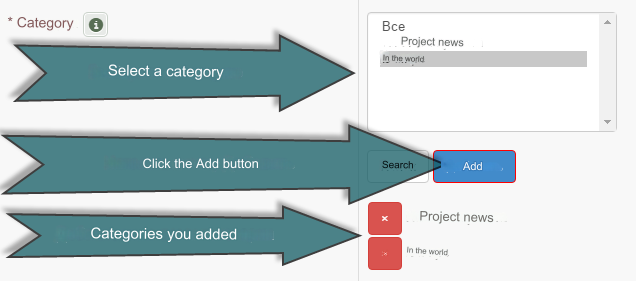
Category - when you select which categories this additional feature will be displayed. field. To select multiple categories, use the Add button. Select All if the field should be displayed for all categories.
Group - for which groups this additional feature will be displayed. field. To select multiple groups, hold down the Ctrl key on your keyboard and select the groups you want. Select All if you want the field to appear for all groups.
Field type: Varchar - string field type. The length of the value (field) can be arbitrary (from 1 to 255). All spaces at the end of the line are removed. Int - numeric type. Used to display numbers. Float - a type of small floating point numbers. Used to display amounts. Text - string field type. Used to enter text. Select the field type depending on the field you are adding.
Field length - for Varchar and Int field types. It is not possible to enter text greater than the value entered in this field.
For Int it is not recommended to use a length greater than 6.
Form type: Text - a regular text field. Textarea - large text field. Select - selecting values from a drop-down list. Radio - radio type switches are used in cases where you need to organize the choice of one of several options. Ie. You can select only 1 value from the proposed ones. Checkbox - checkbox switches are usually used to select any parameters or capabilities independent from each other. Ie. you can select several values from the proposed ones. Select the form type depending on the field you are adding.
Default data - data that will be displayed by default in the input field. PHP global variables are supported: $_username (user login) $_truename (user's first and/or last name) $_email (user's e-mail) For form types: Text and Textarea you can enter any data. For form types: Select, Radio and Checkbox any of the values you entered in the Select field values.
Selecting values - for the Select, Radio and Checkbox form types. Each value with a new lines. Separate the meaning and name: | and end the line: *
Example:
Required number of characters to fill - 0 - not required to fill in A regular number other than zero means that you must enter at least the specified number of characters in this field Two numbers separated by a line, for example 2-10 - means that you need to enter from 2 to 10 characters in this field For the Checkbox type, the entered values limit the selection. For example: 2-3 means you need to select a minimum of 2 and a maximum of 3 values For Select and Radio types, any number other than 0 means that you must select
Checking fields - depending on the type of field and form. You can enter your own regular expressions. A drop-down list is available: No restrictions, Numbers only, Symbols only, Symbols and numbers only , E-mail, Date
Additional - you can add CSS or JS styles. If single quotes are used, then add a backslash before the quote: \
Output in search - display the field in an advanced search. The option is available for form types: Text, Select, Radio, Checkbox and Date
Field activity - Global setting. If you select No the field will not appear in any setting.
Hints. Attention!
If the type changes, then add. fields must be changed (overwritten).
If categories change, then add. fields must be changed (overwritten).
If categories are deleted, then add. fields also need to be changed or deleted.
All fields are configured and information is added based on your settings. You change the additional settings. fields. In this case, change all information based on your new settings.
So think through the entire structure initially and then start creating additional fields.
Exceptions
Users - are not displayed in the search. There is no search for this module. Groups are not selected. Users are already a group.
If, when adding additional field does not select an option, which means the option is not supported in this module.
List of created fields
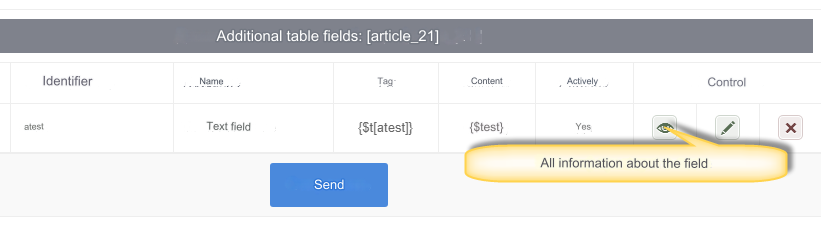
Inserting additional field codes into templates
An example of inserting the output of additional fields into a template using the example of a module Articles
Open the template file: template/default/article/show.htm.
Insert the variable from the Content field into the place in the template where the additional field should be displayed. In our case, the test example is: {$atest}
{$atest} - we paste this code into the template with the condition that the field is filled in:
That's all. Filled fields will be displayed when viewing information.
Using the option to create additional fields from clonable modules you can create your own modules with any content.
Variables from the Form and Call in Form fields are used when adding information to the form. Displayed by default.
The variable from the Tag field is used in tags in the information output in the information list.
List templates in the directory: template/default/tag
Add an additional field tag for display in the list in the module Articles (template: template/default/tag/list-article.htm)
Insert into the right place:
Last updated