
Updating templates
Own design
If you made your own design and created a directory of your own design, then ALL design files from the update archive template/default/ should be copied (replaced) into your design directory. Pre-compare the files of the previous version with the current version for changes and make changes to your templates.If you are integrating the template yourself, then we will not understand your mistakes. You pay for the service: Further support according to the first or second option.
Which program to use for comparison
We recommend using Notepad++
Open the files that we want to compare.
The first template file is used by default, the second is new from the update archive.
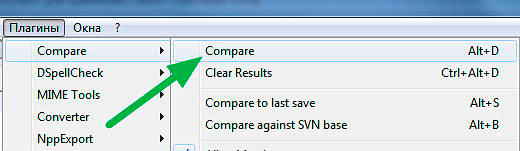
To start comparing, you need to run the Compare plugin. To do this, go to the Plugins tab – Compare – Compare.
If this plugin is not yet installed in your version of Notepad++, then go to Plugins – Plugin Manager – Show Plugin Manager.
From the general list of plugins, select Compare, check the box next to it and click the Install button.
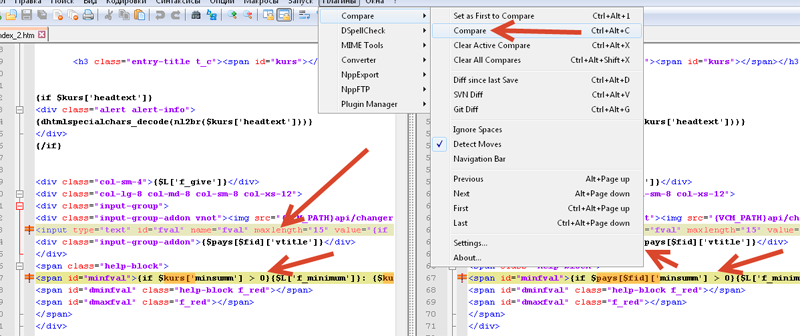
Files that you open for comparison open in two tabs, in which all the differences are highlighted.
Possible changes in JS scripts
Perhaps the main page template in your design has been globally changed - Choice of direction.
And you have changed the direction selection JS file.
By default it is called exc_main.js
In your template you may have named it differently (it is recommended to name it differently).
In this case, open the file exc_global.js and replace exc_main with your name.
Otherwise, when selecting a direction, JS errors will appear and the selection will not work.
It is first recommended to rename the file exc_global.js to your name.
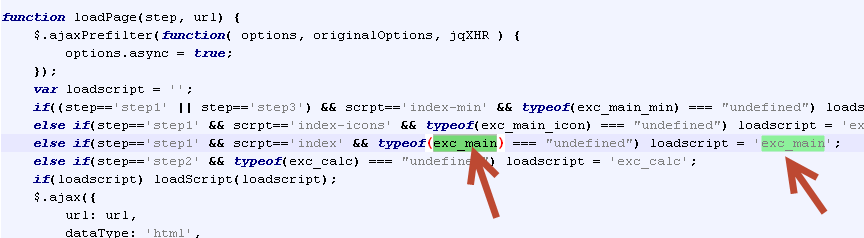
The file exc_global.js is responsible for the option Proceeding through exchange steps without reloading pages.
Enabled in the module settings: Currency exchange.
If for some reason you cannot get your template to work correctly without JS errors, then disable the Proceed through exchange steps without reloading pages setting.
We repeat: If you are integrating the template yourself, then we will not understand your mistakes. Pay for the service: Further support according to the first or second option.
Common mistakes
You must use the subload style:
If the default template has an ID on any line, do not ignore it in your template.
It is necessary to use step IDs step and stepscripts:
The closing DIV of the steps must be before the start of the script:
Output any blocks only on the main page, use ID:
Last updated