
Modules
Description
Modules are divided into clonable - not clonable and deleted - not deleted.
Clonable - modules that can be cloned. Those. use the system module kernel to create your own.
The module is not cloned - see section: Training - Errors and their correction
Deleted - The deleted module is deleted irrevocably! By deleting a module, you delete all the information contained in it. You can only delete created (cloned) module.
Overwrite module - this option is designed to check module files for overwriting. Overwriting does not affect the added information and settings. If a module installation fails, rewrite it.
Disable module - disabling a module saves the module settings and all information added to it, but the module is not displayed on the site.
Changing a module
You can: 1) Rename the module, give it your own name. 2) Determine whether to display the module in the navigation or not. Do not include the conclusion in the navigation of the modules: users and plugins . Currency exchange is displayed on the main page by default. 3) open viewing the content of the module in the new window or in the same. 4) Determine whether the module should be displayed in the search or not. 5) replace the logo. When navigating to the module directory, you can display your own module logo. Example for an article module: upload a logo with the name: logo_21.png (logo_ID of the module) to the directory: skin/default /images/ and enable the option to display your own module logo. 6) Change the module directory. Changing the module viewing directory. Example: article module directory: article, can be renamed to news. Changing the directory frequently is not recommended, you will lose pages indexed by search engines .
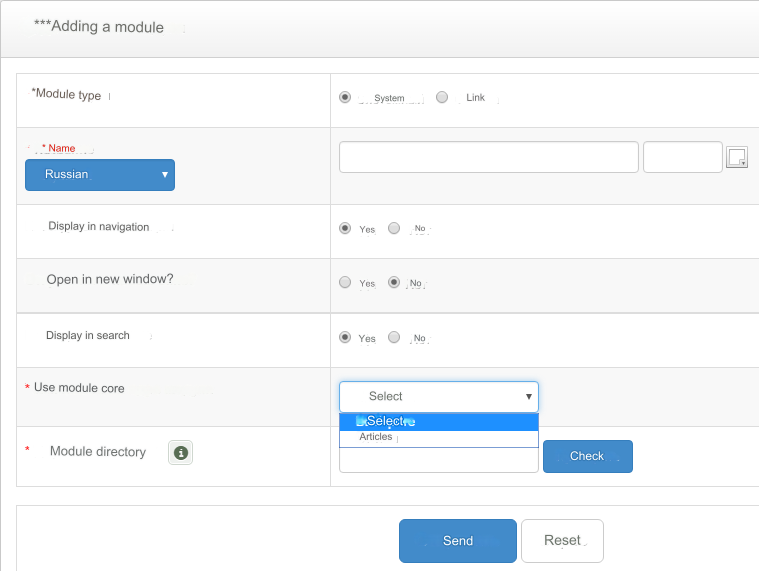
Adding a module (cloning) - you can add any custom module using the module core Articles This way you don't have to write your own module code. It is enough to clone an existing one, add your own fields if necessary and assign your own templates to the cloned module. Tips in the section: Training - Additional Fields and Training - Templates
Process of adding a module
Module type - System - internal site module using the core of existing modules or the core of your own module. Link - external module. Simply put, this is a link to a page or resource. For example, a forum.
Selecting the module type System enter the name of the module, select the kernel of the module to be cloned and enter the module directory in Latin letters.
Selecting the module type Link enter the name of the module and the transition URL. The referral URL must be entered in full with http://
Clearing the cache - clear the cache when changing settings or renaming the module. Changes will take effect immediately after clearing the cache.
Restrictions
You cannot change the names of system module directories: Member, Exchange, Plugins
Last updated