
Two-Factor Authentication
Two-factor authentication settings
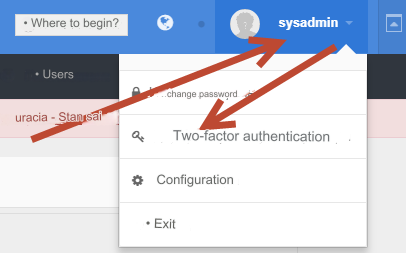
Authentication via application
 Be sure to go to the application settings: Settings - Time correction for codes.
 4. In the admin panel on the page Two-factor authentication - Authentication through the application point the camera at the QR code and receive a one-time password.
Enter the received one-time password in the field and click Activate
4. In the admin panel on the page Two-factor authentication - Authentication through the application point the camera at the QR code and receive a one-time password.
Enter the received one-time password in the field and click Activate
 Two-factor authentication enabled
 If you have disabled two-factor authentication, your existing account in the application will no longer be relevant.
You will no longer be able to log in using it. Create a new one:
1) Scan the QR code, a new account will be created.
2) Delete the old one by holding the code from the old account with your finger (a trash can icon will appear).
If you have disabled two-factor authentication, your existing account in the application will no longer be relevant.
You will no longer be able to log in using it. Create a new one:
1) Scan the QR code, a new account will be created.
2) Delete the old one by holding the code from the old account with your finger (a trash can icon will appear).
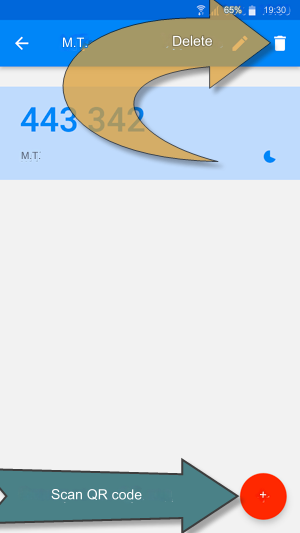
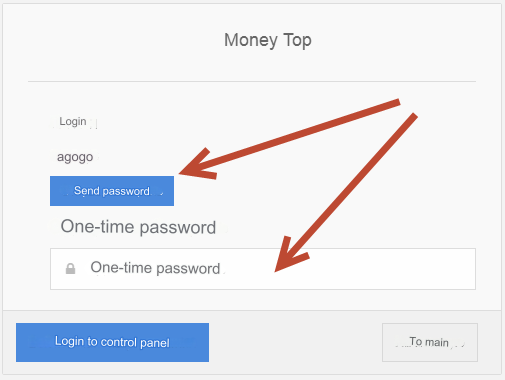
Authentication via application
 Please note that the one-time password is valid for 3 minutes
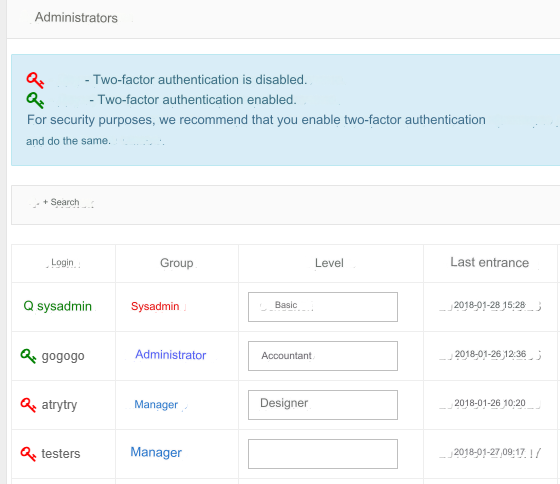
How can the main admin check whether two-factor authentication is enabled for managers
How to disable two-factor authentication
 If a manager loses a mobile device, only the main admin can disable two-factor authentication.
See section: Settings - Administrators - Changing administrator
If the main admin loses the mobile device, two-factor authentication can only be disabled through phpMyAdmin.
Table: _sysadmin
Clear the data in the columns: twofactor and authtype opposite your login.
We recommend that all administrators enable two-factor authentication
If a manager loses a mobile device, only the main admin can disable two-factor authentication.
See section: Settings - Administrators - Changing administrator
If the main admin loses the mobile device, two-factor authentication can only be disabled through phpMyAdmin.
Table: _sysadmin
Clear the data in the columns: twofactor and authtype opposite your login.
We recommend that all administrators enable two-factor authentication
Last updated