
Security
Login to the admin panel
Be sure to rename the name of the admin login file. By default, the file admin.php is in the root directory of your server
Required conditions: - the file name must be at least 7 characters. - the file name should not contain admin
Optimally, the admin file is a set of random Latin characters. For example: hflkdhkwe.php, ~~ddwluty.php, etc.
Save your admin login URL in a safe place!
Change password
Changing your password every 30 days is required.
When you log into the admin area, the system will redirect you to the password change form if the password has not been changed for more than 30 days.
Password complexity
When changing the password in the admin panel, the system will check the complexity of the entered password.
IP was changed
When you log into the admin area with a new IP, the system will block access until you enter the confirmation code.
A confirmation code will be sent to the E-mail entered in the administrator account. Enter your real email in your account
Recommendations
Be sure to read this section: Exchange - Security
If you see a notification in the Settings - Security section:
Attention! The database configuration file is available for overwriting! Potentially dangerous!, set the permissions (CHMOD) to read-only on the file dbvucmsconf.inc.php, which is located in the root directory of your server.
Depending on your server settings, rights (CHMOD) may be: 444 or 400.
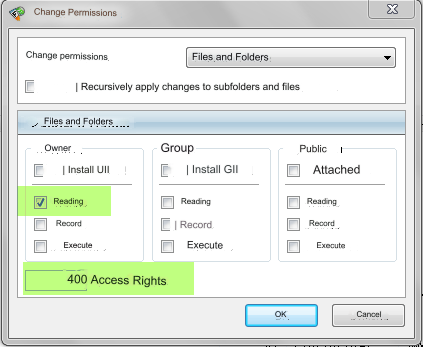
Htpasswd to admin file
If an attacker gets into your admin area, he can do anything. We highly recommend installing this protection.
See this section: Htpasswd to the admin file
Two-factor authentication
We recommend using it. See section: Training - Two-factor authentication
Settings
Main
Use an additional password to log into the admin panel - do not enable the option until you set an additional password. Otherwise you will not be able to log in to the admin panel you can.
How to set an additional password: 1) Open the file api/a_save.inc.php 2) Enter the password according to the example: $_adminsafecode = '456jkhlfrGDJ77'; 3) Save the file and replace it on the server. 4) Now you can enable the option and log into the admin panel by entering the password you specified in the Additional password field that appears. Important! The primary login password and the secondary password must be different.
Send notification about admin login - when this option is enabled, a notification will be sent to the system E-mail indicating the IP from which the login was made, the login of the logged in admin and the date.
IP access to the admin panel - access only from the entered IP. Leave the field empty if your IP changes or enter a mask like this: 62.200.*.* If you need to enter multiple IPs, use a separator: | Example: 70.198.15.00|80.180.10.20|90.200.22.77
Captcha symbols - empty field - the system automatically displays a combination of Latin letters, numbers and symbols. You can enter any combination of Latin characters 0-9 and/or AZ For example: - display only digital code. Enter the numbers in the field: 0123456789 - display only the code of certain letters. Enter in the field for example: ABCFRTPKFasw - display only the code of certain letters and numbers. Enter in the field for example: QWERTY123
Recording action logs in the admin panel - an option for maintaining action logs. Some: only adding, changing, deleting and important operations are written. All: all actions are written.
Recording logs of logins to the control panel - logs of administrator and user logins. Some: only daily logs are written. All: all logs are written.
Restriction of login to the admin panel with the same login, but different IP at the same time - Disabled: no restrictions. Enabled: notification and one-time logout when logging into the admin panel.
File download log - enable or disable the file download log option.
Allowed extensions for uploaded files - global setting. Each module has its own settings, but if there is no extension in the global settings, then loading a file with this extension is impossible. Each extension is separated by the sign: | no spaces. Example: jpg|gif|bmp|png|rar|zip|doc|pdf|xls|ppt|flv|wmv|swf
Limitation on the size of uploaded files - in Kb. 1024Kb=1M
File directory - example: Ym/d - Year month day. By default, files in the directory: file/upload
Referral verification is an important option. It is recommended to enable it. It checks which site the request is coming from. Eliminates data substitution.
Allow JS scripts for domain aliases - enable this if you want all logged in user data to be displayed when navigating to an alias.
Domain aliases - leave the field empty if one domain is used by default. Aliases must be entered with a separator: | without spaces. Example: awebcom.com|darkweb.biz Your primary licensed domain should be entered first.
Limiting the system load factor - distributing the load on the system during possible DDOS attacks. Only for Unix/Linux systems. The optimal values are from 5 to 10 if your site is under a DDOS attack. 0 or empty - do not limit. Set to 0 if the site is working normally.
Cookie Domain - This option sets the domain to which the cookie should be bound. After changing this setting, be sure to clear your browser's Cookies and update your cache.
Cookie prefix - any Latin characters and a lower hyphen at the end. Example: aw_
Ability to change the names of the following files - registration, logging into the user account. The system will automatically try to change the names of the files. After changing the name, check that the change is correct. If the name is not changed, change the file name manually via FTP.
Restrictions for managers
These settings apply only to added admins and managers. Does not apply to the main admin.
Limiting login to the admin panel by time - the option limits the login to the admin panel by time. Examples: 8:30-18:00, login to the admin area is possible from 8:30 to 18:00. 22:30-2:05|5:00-13:15, from 22:30 to 2:05 and from 5:00 am to 13:15 pm. Do not limit - leave the field empty.
Restriction of login to the admin panel by days of the week - select the days of the week on which login to the admin panel is allowed.
Limiting the addition of information by time - the option limits the addition of any information by time. Information will be sent for moderation, regardless of the group settings and module settings. Read about the settings: "Restriction login to the admin panel by time." The settings are identical.
Limiting the addition of information by day of the week - the option limits the addition of any information by day of the week. Information will be sent for moderation, regardless of the group settings and module settings. Read about the settings: Limiting access to the admin area by day of the week. The settings are identical.
Last updated