
Auto-trades
Description of Auto-trading
Auto-trading is a function of automatic trading on a cryptocurrency exchange.
The function allows you to store funds in one cryptocurrency and conduct exchanges in other currencies without having a balance in these currencies.
Two types of operations are available:
Sale - sells the funds received during the exchange
Purchase - purchases the currency necessary for the exchange
Operation principle:
Suppose we have a balance on the exchange in USDT currency and configured exchange directions USDT->ETH and ETH->USDT.
Sale. We do not want to keep ETH on our balance sheet and will immediately sell all proceeds for USDT; for this we are creating an auto-trading in the ETH->USDT direction.
1. After the exchange is completed and ETH is received on your balance (of any payment system), the script will automatically transfer the received funds to your balance on the exchange (this step is skipped if the receiving payment system is the exchange on which trading is configured).
2. After ETH arrives on the exchange balance, the script creates an order to sell the entire received amount for USDT at the current exchange rate.
Purchase. If we do not store ETH, we will not be able to pay it, for this we create an auto-trade in the direction USDT->ETH.
1. After paying for the exchange, the script creates an order to purchase the required amount of ETH (including payment commission) for USDT at the current exchange rate. The exchange changes to the status “Funds received, awaiting payment.”
2. After the trade is completed, the script creates a payment from your exchange balance to the client's address specified as the recipient of the funds. The exchange is completed.
In case of insufficient balance or other errors and delays on the exchange, the auto-trading application goes into the “Postponed” status, repeated attempts to complete the trade are launched only through CRON (see below).
All trades conducted are spot.
For each exchange, only one sell trade and one buy trade can be launched. If the exchange direction is selected in several trades with the same type, only the last changed one will be launched.
You cannot add multiple trades with the same direction and type of trade. Edit existing ones.
If the direction has an active trade for purchase, the balance check (real account balance) is disabled, but the reserve check (entered in the payment system settings) remains. It is recommended to set it manually.
Adding auto-trading
The first thing you need to do to add auto-trading is to select API. This is the API of the exchange through which trading will take place.
After selecting the API, exchange data loading will begin, you need to wait for it to complete.
Once the download is complete, all other settings will become available:
Direction of trading - in which direction trading will take place on the exchange (do not confuse it with the directions of exchanges).
Network - fields next to the currencies in the selection of trading direction are needed to indicate the network of the currency, if necessary.
Button "Download information" - checks the selected direction on the exchange and displays its parameters. It also automatically updates commissions in the fields below. Press the button after selecting the desired direction. For some exchanges, you need to enter API keys before loading information (features of the API).
Trading type - Buy or Sell. Carefully read the hint under this setting; the currencies in it are automatically entered depending on the selected direction.
Directions - directions of your exchanges during which this auto-trading will be launched. The list of directions varies depending on the direction and type of trade. Only destinations with suitable currencies are displayed.
Min. amount - the minimum exchange amount at which auto-trading will be launched. 0 - no restrictions. The exchange may have different minimum amounts for trading and payment. The minimum payout amount and exchange rate are displayed by clicking on "Download information".
Max. amount - the maximum exchange amount at which auto-trading will be launched. 0 - no restrictions.
Trading commission - what commission the exchange takes for itself when conducting this trade. Necessary for calculating the correct amount for bargaining (purchase). Updated automatically when you click on "Download information".
Payment commission - what commission the exchange takes for itself when paying out funds to another address. Necessary for calculating the correct amount for bargaining (purchase). Updated automatically when you click on "Download information".
Lot step - the minimum step of the trading amount. 0 - no restrictions. It is necessary to adjust the amount for trading, otherwise the exchange may not accept the application for trading. Updated automatically when you click on "Download information".
Execution time - after how many minutes the operation will be canceled if it could not be completed during this time. 0 - no restrictions. We do not recommend leaving 0 so that problematic requests do not freeze, but end with an error and the administrator is notified.
API keys - several fields highlighted in red, which differ for different API exchanges. For instructions on setting up and obtaining keys, see the list of APIs below.
Status - whether the added auto-trading will be active or not. Disabled ones do not start even if all other conditions are met.
Available exchange APIs
Click on the title to go to instructions for setting up the API
CRON
The internal CRON system is used to process pending requests. For more details, see the section System - Scheduler (CRON)
For more stable operation, it is recommended to add a server CRON
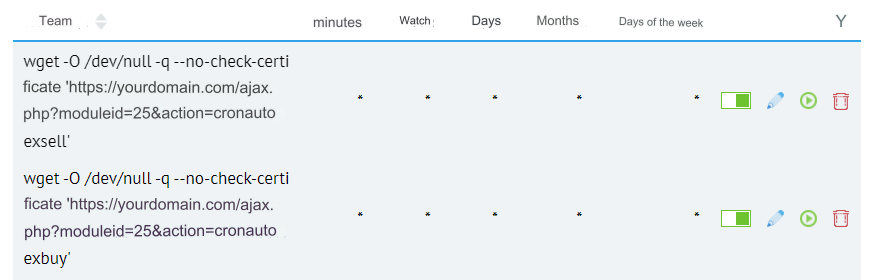
In the control panel of your server, go to the section: CronTab (Task Scheduler) (example for Beget.com hosting).
Add a task for processing purchases:
and for sales processing:
yourdomain.com replace with your domain
The screenshot shows an example of running tasks every minute.
Last updated