
Languages
Adding new texts
There is a special file for adding additional language strings.
You can find it in each language directory (for example: /lang/en-en/), file name: custom.inc.php
The file contains an example of adding new text: $L['sample'] = 'Sample';
$L['sample'] - variable name, change the text inside the quotes to a unique one, in Latin and numbers.
'Sample'; - the text itself, necessarily inside quotation marks, the length is not limited.
Be sure to follow the syntax. Do not lose the quotation marks and the semicolon at the end of each line.
To use the added text - insert its variable into the template, highlighted with curly brackets, for example: {$L['sample']}
Adding a new language
Go to the section: System - Languages
System language: Russian and cannot be deleted.
Add a new language by first creating a language directory on the server with language files. See the section: Training - Language versions of the site
Name - enter the name of the language. For example Français
Directory - select the language directory you created
Currency language - select the language in which the names of currencies will be displayed. Russian and English are currently supported
Card language - select the language in which the cards will work. Russian and English are currently supported
Maps are not used by default. You can add a Yandex map.
See section: Contacts plugin settings
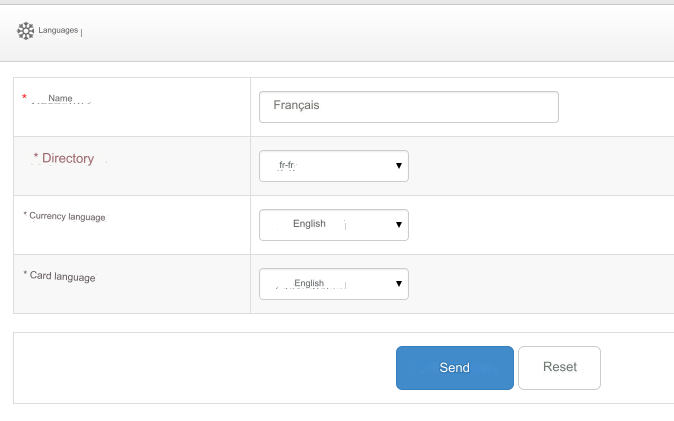
Translation into added language
The next step is to translate all sections of your site.
Names of modules, categories, user groups, module settings, etc.
Pre-enable multilingualism in the section: Settings - Configuration - Multilingual
Example of translation of module names:
Go to the section: Settings - Modules
Change the module settings, select a language and set a name for the selected language. It is optimal to first switch on the frontend to the language you are going to translate into.
In this case, the language will already be selected.
 Example of translation of categories:
In the list of categories you created, enter the category names in the selected language and save the settings.
 Example of translation of SEO module settings:
In the module settings, fill in all the fields where you can switch the language.
Or use variables:
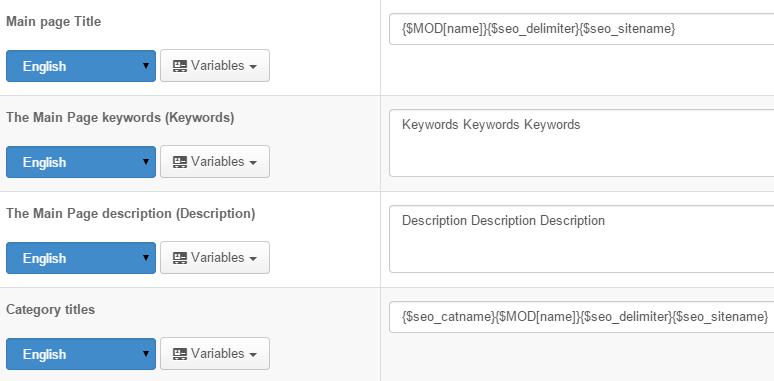
Multilingual prefixes
The option adds language prefixes for indexing the site by search engines in different languages. The option is made according to Google recommendations URL Structure - Subdirectories with gTLD
The option is enabled in the Settings - Configuration - Use multilingual prefixes. Mod_rewrite must be installed on the server, otherwise the prefixes will not work.
If you are using multilingual prefixes, open .htaccess and uncomment the line below.
The line should look like this:
RewriteRule ^(/|index.php)?$ /ru/ [R,L]
Ability to switch the language by the user - the option must be enabled if you enable multilingual prefixes.
If you use the option, then generate a new Google Sitemap in the Modules/Plugins - Settings - Google Sitemap section
If you are using a language other than Russian by default, then changes are required in the .htaccess file, which is located in the root of your server.
Open .htaccess and find:
RewriteRule ^(/|index.php)?$ /ru/ [R,L]
/ru/ change to the prefix you need, depending on the default language enabled on your site.
The prefix name must be the initial name of the added language directory.
For example: /en/ or /fr/ or /uz/ and so on...
Be sure to update the entire cache after enabling or disabling the option.
Language icons
Background icons are used by default (background icon style file here: skin/default/flag.css)
The icon is determined based on the language directory code. Please take this into account when adding a language directory.
If you have your own design and you want to display flag icons NOT as background images, but as regular ones.
In this case, use this code to switch languages in the header.htm template.
{if $CFG['lang_switch'] && count($VCM_LANGS)>1}
{loop $VCM_LANGS $k $v}
<img src="{VCM_PATH}lang/{$k}/icon.png" onClick="lang_switch('{$k}');" alt="{$v}" style="opacity: 0.8;cursor:pointer;" border="0">
{/loop}
{/if}
Last updated